Your profile is you, not your site. Click your avatar in the top right and choose Settings. This opens User Settings, which has four pages listed under Personal in the sidebar:
- Profile: your profile picture, name, email address and password, and deleting your account.
- Notifications: which optional emails you get (Getting started tips and Product updates). Account and billing emails always send.
- Security: two-factor authentication and API keys.
- Appearance: the color theme (System, Dark or Light).
What you change here follows you across every organization you belong to.
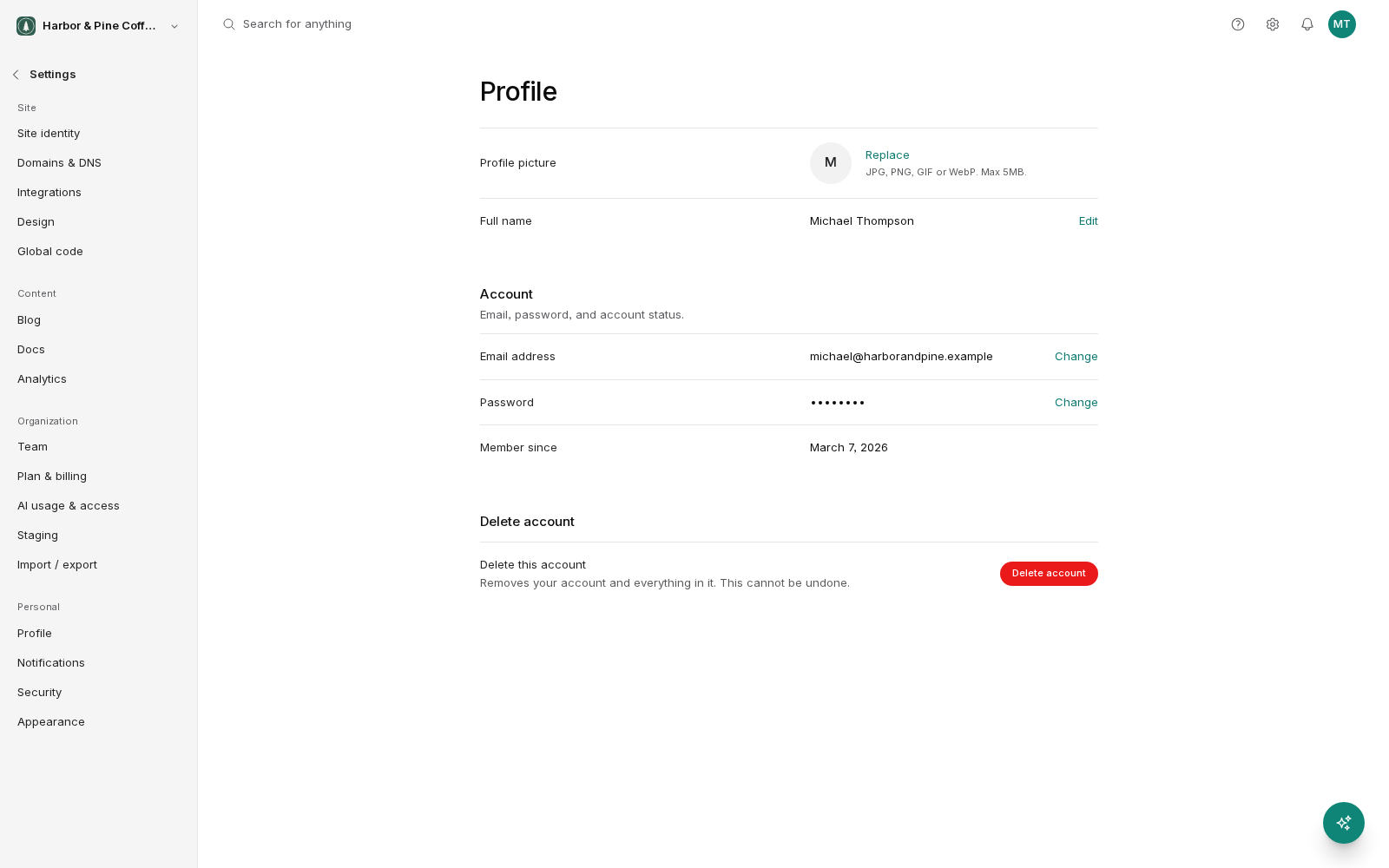
Name and avatar
Your name is what teammates see next to your activity. Your avatar is the small image beside it. Both are worth setting on a team of more than one or two people. It makes it obvious who changed what.
Changing your email
Your email address is what you sign in with, and where account notifications go.
Changing it requires confirmation. You enter the new address, and a confirmation email is sent to it. The change takes effect only once you follow the link in that email. Until then, keep using your old address to sign in.
If the confirmation email does not arrive, check spam first, then confirm you typed the address correctly and start again.
Changing your password
You can change your password on the Profile page. You will normally need your current password to set a new one.
Use a long, unique password and store it in a password manager. Reusing a password from another service is the single most common way accounts are lost.
If you have forgotten your password, use the reset link on the sign-in page instead.
Two-factor authentication
Two-factor authentication adds a second step to signing in: your password, plus a code from an authenticator app on your phone. Someone who steals your password still cannot get in.
Turn it on if you have admin access, or if your site matters to your business. That is most people reading this.
Turn it on from the Security page, next to Authenticator app. Setting it up connects an authenticator app to your account. After that, signing in asks for a code as well as your password.
Backup codes
When you turn on two-factor authentication you are given backup codes. Each one gets you in once if you do not have your phone.
Save them somewhere you can reach without your phone, such as a password manager, or printed and filed, but not in a note on the phone itself, which is exactly the thing you will not have.
Each code works once. If you use several, or think someone else has seen them, generate a fresh set. Generating new codes invalidates the old ones.
API keys
API keys let other software work with your BrightSite account on your behalf. They are on the Security page. If you are not connecting anything, you do not need one.
Two rules if you do use them:
- Treat a key like a password. It carries your access. Do not paste it into a shared document or a chat channel.
- Delete keys you are not using. An unused key is access nobody is watching.
A key is usually shown in full only once, when you create it. Copy it then.
Theme
BrightSite has light and dark themes. Choose one on the Appearance page, or use the Appearance switch in the menu under your avatar. System follows your device's setting. The choice applies to your account everywhere you sign in.
Deleting your account
You can delete your BrightSite account at the bottom of the Profile page. This is permanent.
Before you do, consider what you are actually trying to achieve:
- Leaving one organization? Ask an admin there to remove you. That is the narrow fix.
- Stopping payment? That is billing, in the organization's settings, not account deletion.
- Handing over a site? Make someone else an admin first, then leave.
If you are the only admin of an organization, sort out who takes it over before deleting your account. Otherwise nobody is left who can manage the site or its billing.
A short security checklist
- Two-factor authentication on.
- Backup codes saved somewhere you can reach without your phone.
- A unique password in a password manager.
- Unused API keys deleted.
- Your email address current, so password resets reach you.