Page settings cover everything about a page that is not the content itself: its address, what wraps around it, and how it appears in search results and when shared. Open the page settings from the page itself or from the page list.
Like content, settings are staged. Changes take effect on your public site when you publish the page.
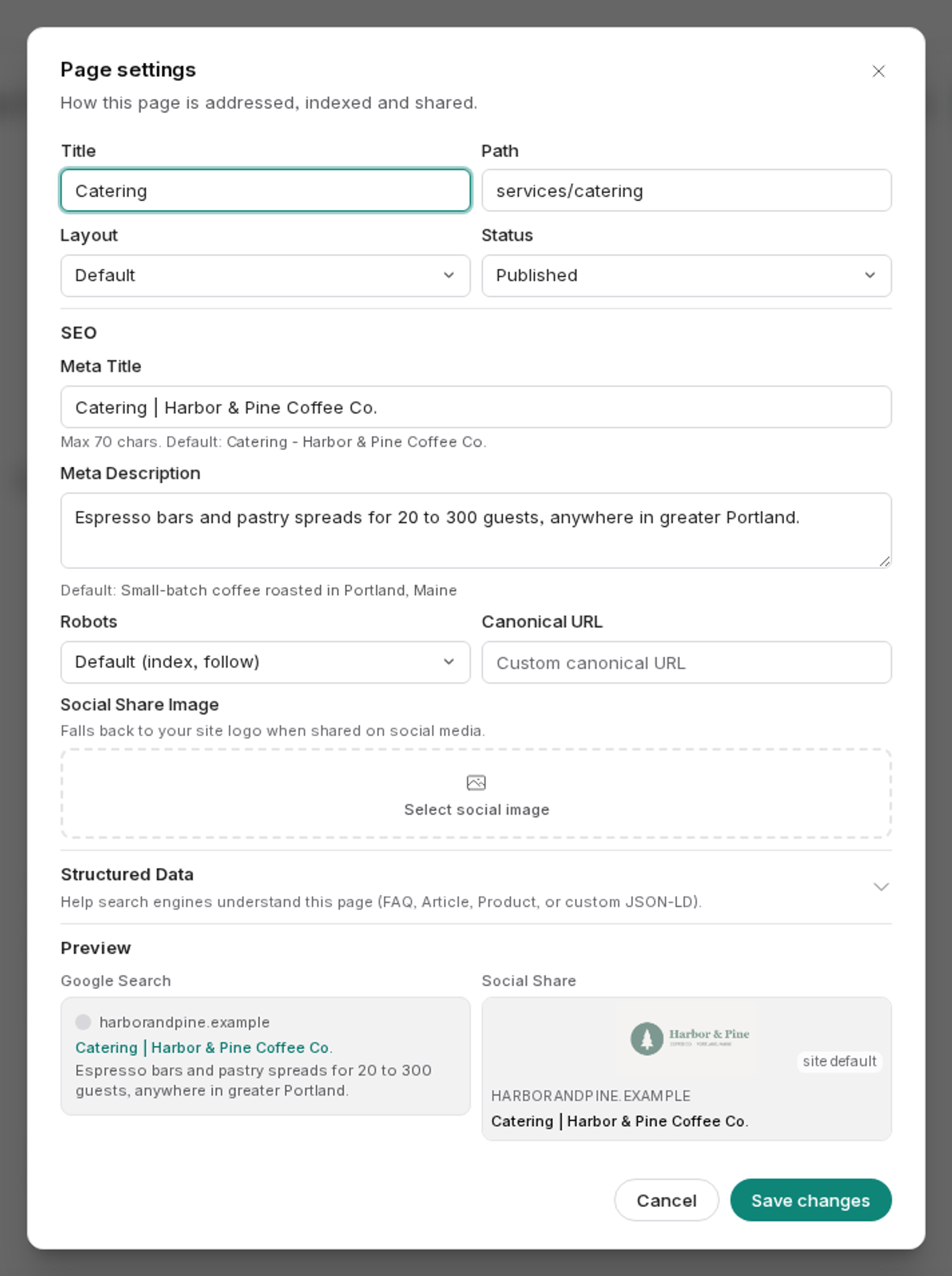
Set the title and slug
The title is the name of the page. It is what appears in the browser tab and, usually, as the headline in search results. Write it for a person reading a list of results: "Furnace Repair in Denver" rather than "Services 2 Final".
The slug is the part of the address that identifies this page, and you edit it in the Path field. Keep slugs short, lowercase, and separated by hyphens: furnace-repair, not Furnace_Repair_Page. Include the words a person would search for, and stop there.
Changing the slug of a published page changes its address. Anything pointing at the old address (a Google result, a link on someone else's site, a link in an email you sent, a bookmark) stops working and shows a not-found page. If you change a slug on a live page, add a redirect from the old address to the new one. That is the whole fix, and skipping it is one of the more common ways to lose traffic.
Nest the page under another
There is no separate parent setting. The path decides where a page sits: a path of services/furnace-repair nests the page under the page at services in the page list. Grouping service pages under a services page keeps the structure legible for both visitors and search engines.
Moving a page under a different parent means changing its path, so it changes the address exactly like changing the slug. The same redirect advice applies.
Choose a layout
The layout is the shared frame around the page, normally the header, navigation and footer. Most pages use your default layout. Some pages want something different: a landing page might use a stripped-back layout with no navigation so there is nothing to click except your call to action.
Pick the layout in the page settings. See the Layouts guide for how layouts are built and assigned.
Write the meta description
The meta description is the short summary that can appear under your page title in search results. It does not directly change your ranking, but it strongly affects whether anyone clicks.
Aim for roughly 50 to 160 characters. Say what the page offers and give a reason to click. Write a different one for every page. Duplicated descriptions across a site are a wasted opportunity. If you leave it blank, search engines will pull a snippet from your page, which is often worse than one you wrote.
Set the social share image
When someone shares your page on social media or in a messaging app, this is the picture that shows in the preview card. Choose it from your media library.
Use a wide, landscape image. A portrait photo gets cropped badly. Avoid small text in the image, since the preview is often shown at a modest size. If you do not set one, the platform picks something from the page, and its choice is frequently poor.
Use robots directives carefully
Robots directives tell search engines how to treat the page. The common one is noindex, which asks search engines to keep the page out of results.
Use it for pages that exist but should not be found by searching, such as a thank-you page shown after a form is submitted, an internal reference page or a temporary campaign page. Leave it off everything else.
Setting noindex on a page you want found will remove it from search results, and getting back in takes time even after you undo it. Change this setting only when you specifically mean to.