A layout is the frame that wraps around your pages. It usually holds the header with your logo, the navigation menu, and the footer with your contact details and legal links. The page content sits inside it.
Layouts live under Design in the sidebar.
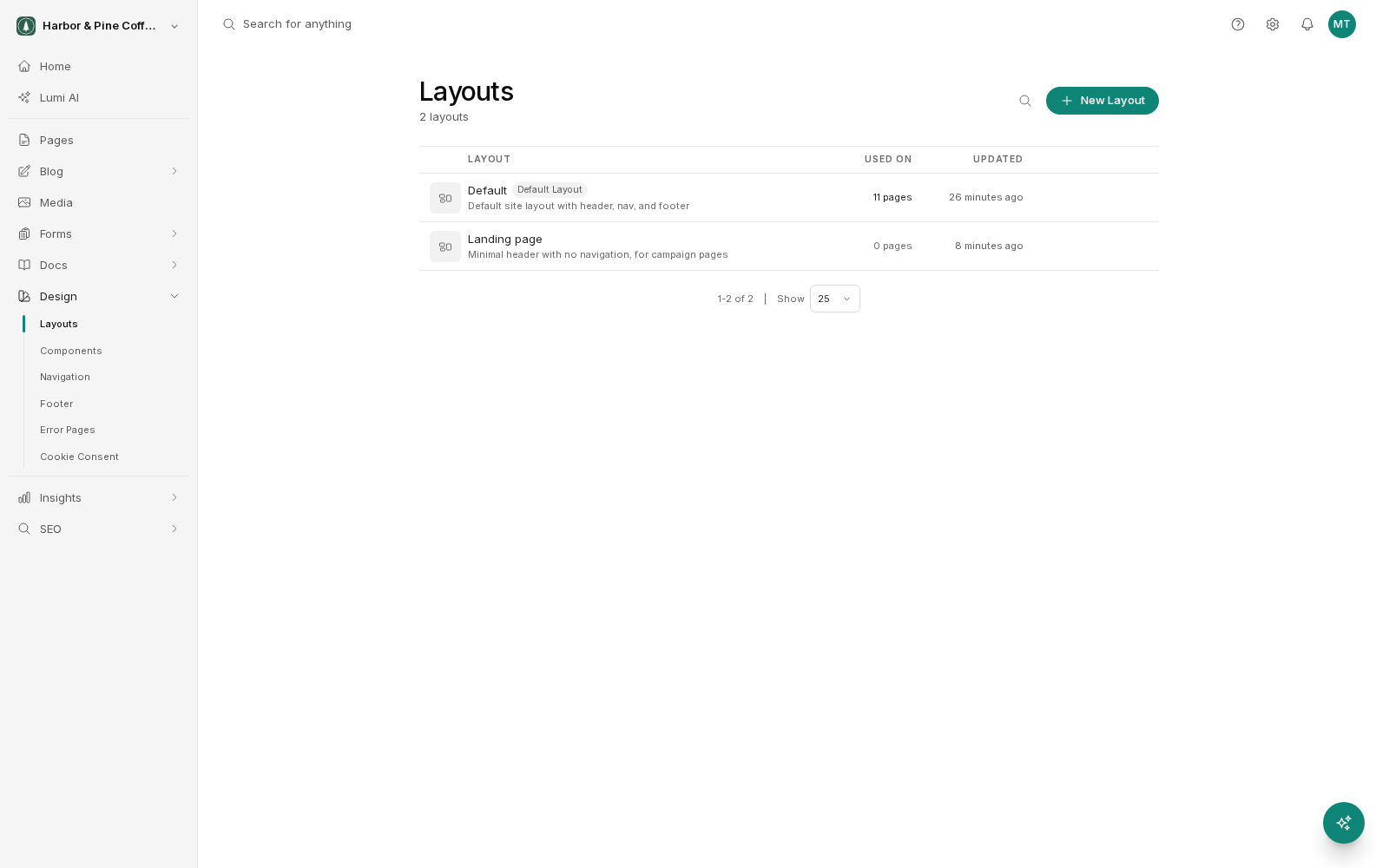
Understand what a layout does
Without layouts, you would rebuild your header and footer on every page, and updating a phone number would mean editing every page on the site.
With a layout, that content exists once. Every page using the layout shows it. Change the footer in the layout and all those pages get the new footer.
The split is worth holding onto: the layout is everything shared across pages, and the page is everything unique to that page.
Use the default layout
Your site has a default layout, and it is what new pages get unless you choose otherwise. On most sites it is the only layout there is, and that is a perfectly good arrangement: one header, one footer, consistent across the site.
If your header or footer needs a change, edit the default layout rather than trying to fix it page by page.
Assign a layout to a page
The layout is chosen in the page's settings. Change it, then save and publish the page for the new frame to appear publicly.
Switching a page to a different layout does not touch the page's own content. You are only changing what surrounds it. If the new layout is much narrower or wider than the old one, look at the page afterward. Content designed for one width can sit awkwardly in another.
Create another layout
Create a new layout from Design > Layouts in the sidebar. Most sites need at most two or three. Common reasons for a second one:
- Landing pages. A page running paid advertising often does better with no navigation, so the only thing to click is your call to action.
- A different footer for a section. Occasionally one part of a site needs different legal text or contact details.
- A wider or narrower content area for a particular kind of page.
Resist making a new layout for a small difference on a single page. Every extra layout is another place to update when your phone number changes. If two layouts share most of their content, consider building the shared parts as components so both layouts pull from the same source.
Edit a layout safely
Editing a layout is like editing a component: the change reaches every page using it. A mistake in the header is a mistake at the top of your whole site.
Some habits that help:
- Save your work and look at the preview before publishing.
- Check both desktop and mobile. Navigation behaves differently at narrow widths, and a menu item too many can break a header that fit comfortably before.
- After publishing, load a couple of real pages on your site rather than only checking the layout in isolation.
Layout edits are staged like everything else. Your live site keeps showing the published layout until you publish the new one. Layouts have their own version history, so you can go back to an earlier version. Restoring puts that version live, so it needs publish permission rather than just edit permission.