A lot of what goes on a business website is a list of similar things. Four service cards. Six team members. Three testimonials. A dozen FAQ entries. In the editor these are collections, and they work the same way wherever you meet them.
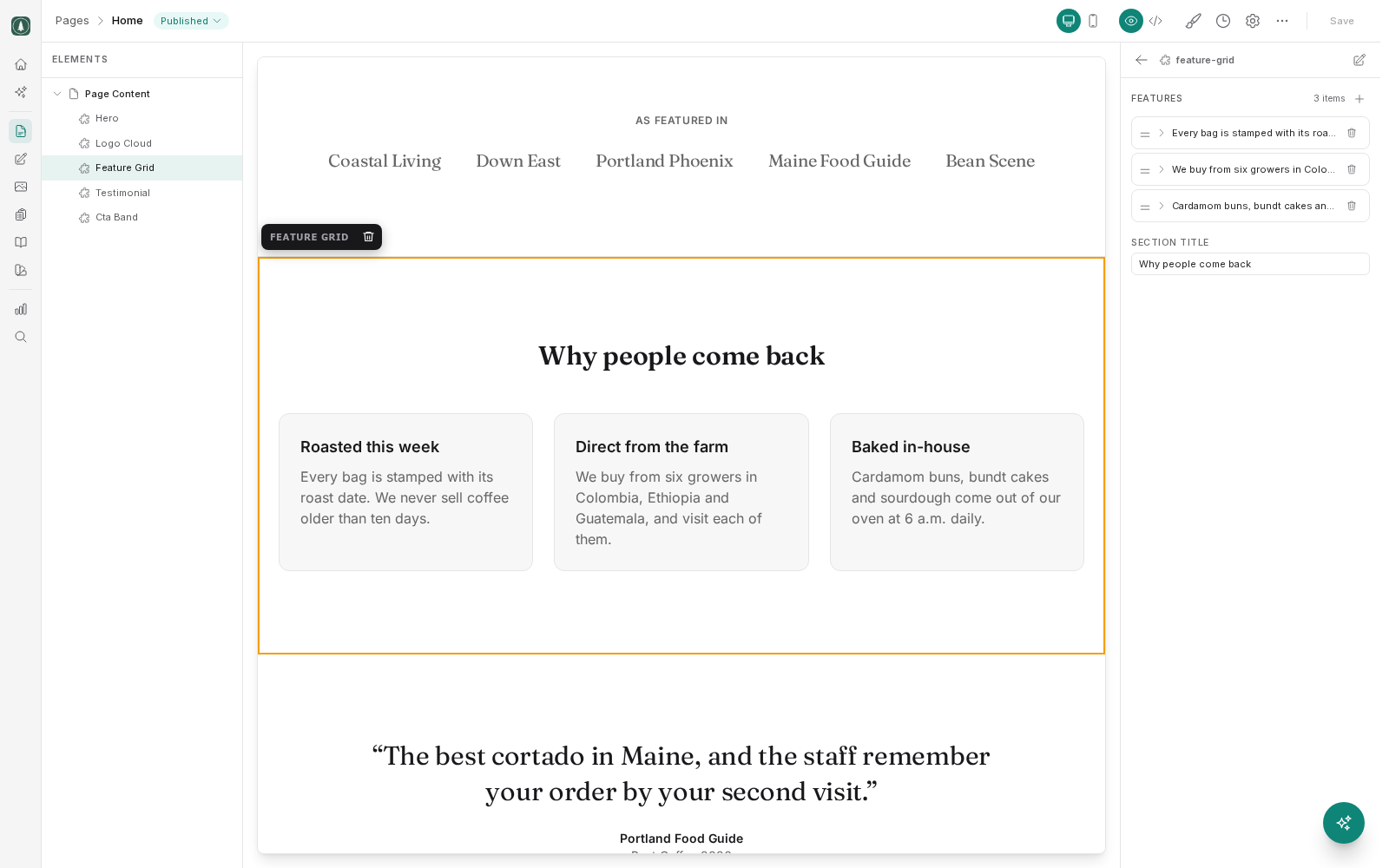
Recognize a collection
A collection is a repeating group of items where every item has the same set of fields. A team member has a photo, a name, a role and a short bio. A testimonial has a quote, a customer name and perhaps a company. A FAQ entry has a question and an answer.
The design of one item is defined once. You supply the content for each item, and the site renders as many as you have added.
Select the element that holds the list and the properties panel shows the items rather than a single set of fields.
Edit an item
Open an item in the panel and you get its fields. Fill them in the same way as anywhere else in the editor: type into text fields, choose images through the media picker, set link destinations by picking a page.
Fields behave the way they were set up. A question field is usually plain text, an answer field is usually rich text so you can add a link or a list inside it. Editing an item changes only that item; the rest of the list is untouched.
Add and remove items
Adding an item gives you a new, empty entry at the end of the list with the same fields as the others. Fill it in and it renders alongside the rest.
Removing an item deletes it and its content from the page. There is no separate trash for collection items, so if you remove one and then want it back, you retype it. If you are unsure, it is safer to leave the item and simply move it to the bottom of the list until you have decided.
Because everything is staged, a removal is not public until you publish. If you remove an item and have not published yet, discarding the draft brings back what is currently live.
Reorder items
Items render in the order they appear in the panel, and you can move them up and down. Order matters more than people expect:
- Put your strongest service first. Many visitors read the first card and skim the rest.
- Put your best testimonial first, not your oldest.
- Order FAQ entries by how often people actually ask, not by how you think of them internally.
On a phone, a grid of cards usually stacks into a single column, so the order in the list becomes the order top to bottom. Check the mobile preview after reordering.
Keep items consistent
Because every item uses the same design, items look best when they are roughly the same size. Three service cards with one line of text and a fourth with a full paragraph will look unbalanced, since the card grows to fit.
Some practical habits:
- Aim for a similar length of text in each item.
- Use images with the same shape and similar cropping, such as headshots framed the same way.
- Fill every field for every item. One item missing its photo stands out.
- Write in the same voice across items, especially if different people wrote them.
Some collections can nest, so an item may itself contain a smaller list. A service card, for instance, can hold its own list of bullet points. Nested lists behave exactly like the outer one: add, edit, reorder and remove in the same way.