A doc page has a title, a short summary, and a body. Everything else is optional and controls how the page appears in your docs navigation.
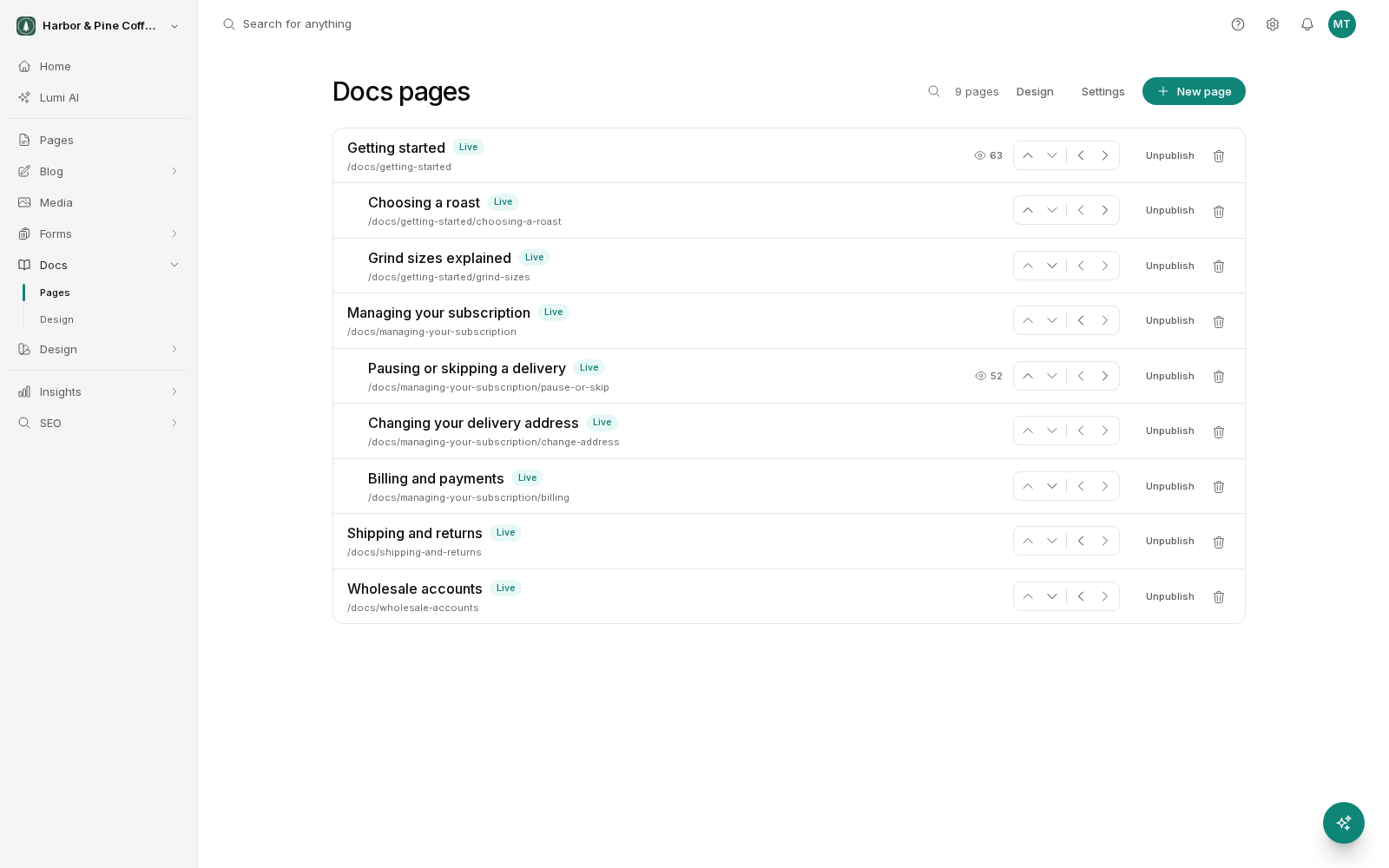
Title and summary
The title is the heading readers see at the top of the page, and by default it is also the text used in the sidebar and in search results. Write it as the thing the reader is trying to do. "Inviting your team" reads better in a list than "Team management".
The summary, sometimes shown as the excerpt, is one or two sentences under the title. It also appears in search results and in listings of child pages. Use it to say what the page covers so someone can decide whether to read it. Keep it factual rather than promotional.
The body
Write the body in the editor. Use headings to break the page into sections, and keep each section focused on one idea. Second-level headings are the ones that matter most: they feed the on-this-page list that readers use to jump around a long article.
A few habits that make docs easier to read:
- Put the answer first, then the detail. People arrive mid-task.
- Use numbered lists for steps and bulleted lists for options.
- Use bold for the exact names of things a reader has to find on screen.
- Break up anything longer than about five lines of solid text.
Sidebar label and badge
By default, the sidebar shows the page title. If the title is long, set a sidebar label to override it with something shorter. The full title still appears on the page itself.
A sidebar badge puts a small tag next to the entry, for example "New" or "Beta". Use it sparingly. If everything is badged, nothing stands out. Clear old badges once the content is no longer new.
Hiding a page from the sidebar
You can hide a page from the sidebar while leaving it published and reachable by its URL. This is useful for pages you link to directly rather than expect people to browse to.
Hiding affects only that page. Its children are not hidden with it. They move up and appear under the nearest visible page above. If you want a whole branch out of the sidebar, hide each page in it.
Table of contents override
The on-this-page list is set globally in your docs settings, but you can override it for a single page. Turn it off on a short page where a list of two headings adds nothing, or turn it on for one long reference page in a docs site where you normally keep it off.
Saving and publishing
Your work is saved as a draft. A draft is not visible to the public no matter what the rest of your settings say, so you can leave a half-written page sitting for as long as you need.
Publishing makes the page live. If you edit a published page, the published version stays as it is until you publish again. Readers never see a half-finished edit.
Unpublishing takes a page back out of public view without deleting it. Do this rather than deleting when you might want the page back, or when you are moving its content elsewhere.
Before you publish
- Read the summary on its own. Does it say what the page is about?
- Check your second-level headings read as a sensible outline.
- Follow any links you added and confirm they still go somewhere.
- Check the sidebar label is short enough not to wrap awkwardly.