The activity log is a running record of changes made in your organization. Every entry names the person who made the change, the item it affected, what they did, and when.
Find it under Insights in the sidebar, then Activity. The bell icon (Updates) in the top right also has a View all activity link.
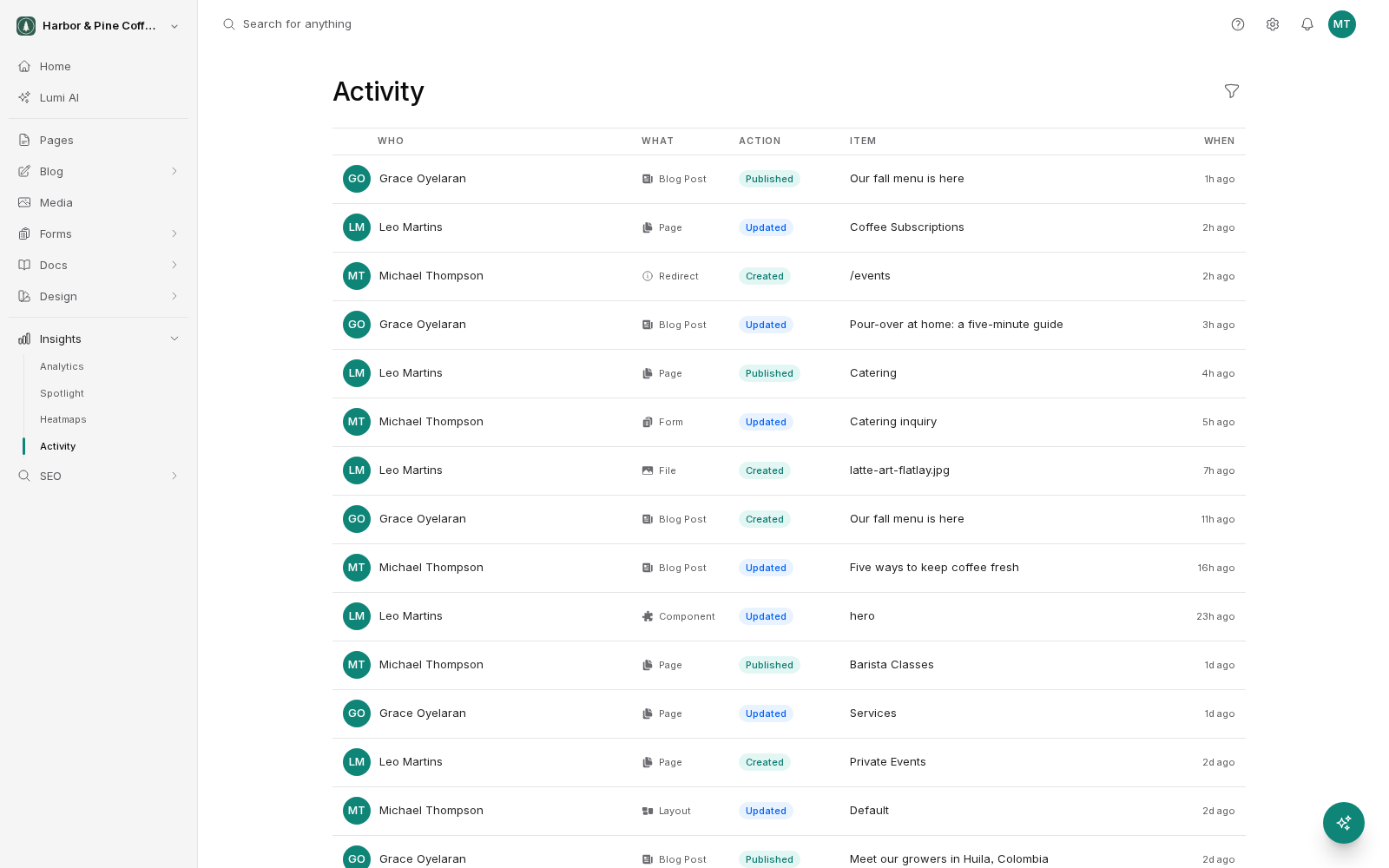
What an entry shows
Each row has four parts.
- Actor: the team member who made the change.
- Item: what was affected, such as a page, a blog post, a form, or a setting.
- Action: what happened to it, such as created, updated, published, or deleted.
- Timestamp: when it happened.
The feed is live, so entries appear as work happens. Newest changes are at the top.
Filtering
Three filters narrow the feed.
- User: show only one person's changes. Useful when you want to review a new team member's work, or find out what a colleague did before they went on leave.
- Type: show only one kind of item, such as pages or blog posts.
- Action: show only one kind of change, such as publishes or deletions.
Combine them to answer a specific question: everything one person published last week, or every deletion of any kind.
Why it is useful
The log answers the question that comes up whenever something looks wrong: when did this change?
A few common uses:
- Something on the site looks different and nobody admits to it. Filter by the item type and scan back to the last change. You then know both when and who to ask.
- Traffic to a page dropped. Line the drop up against the log. If someone republished that page the same day, you have your explanation.
- Coordinating a team. On a site with several editors, the log saves people asking each other what has already been done.
- Handover. When an agency hands a site back to a client, or a new person joins, the log gives a quick history of recent work.
Working with version history
The activity log tells you that something changed. Version history tells you what changed and lets you go back. Use them together: find the change and its time in the log, then open version history for that item to see the previous state and restore it if needed.
What it does not cover
The log records changes made inside BrightSite. It is not a record of visitor behavior. For that, use the analytics dashboard. It also is not a security audit trail: use it for coordinating work and diagnosing changes, and manage access itself through your team and role settings.