Forms are how visitors send you information. A contact form, a quote request, a booking inquiry, a newsletter sign-up. Someone fills in the fields, presses the button, and the answers arrive in your account.
Forms live under Forms in the sidebar. That is where you build them (Forms) and where you read what comes in (Submissions).
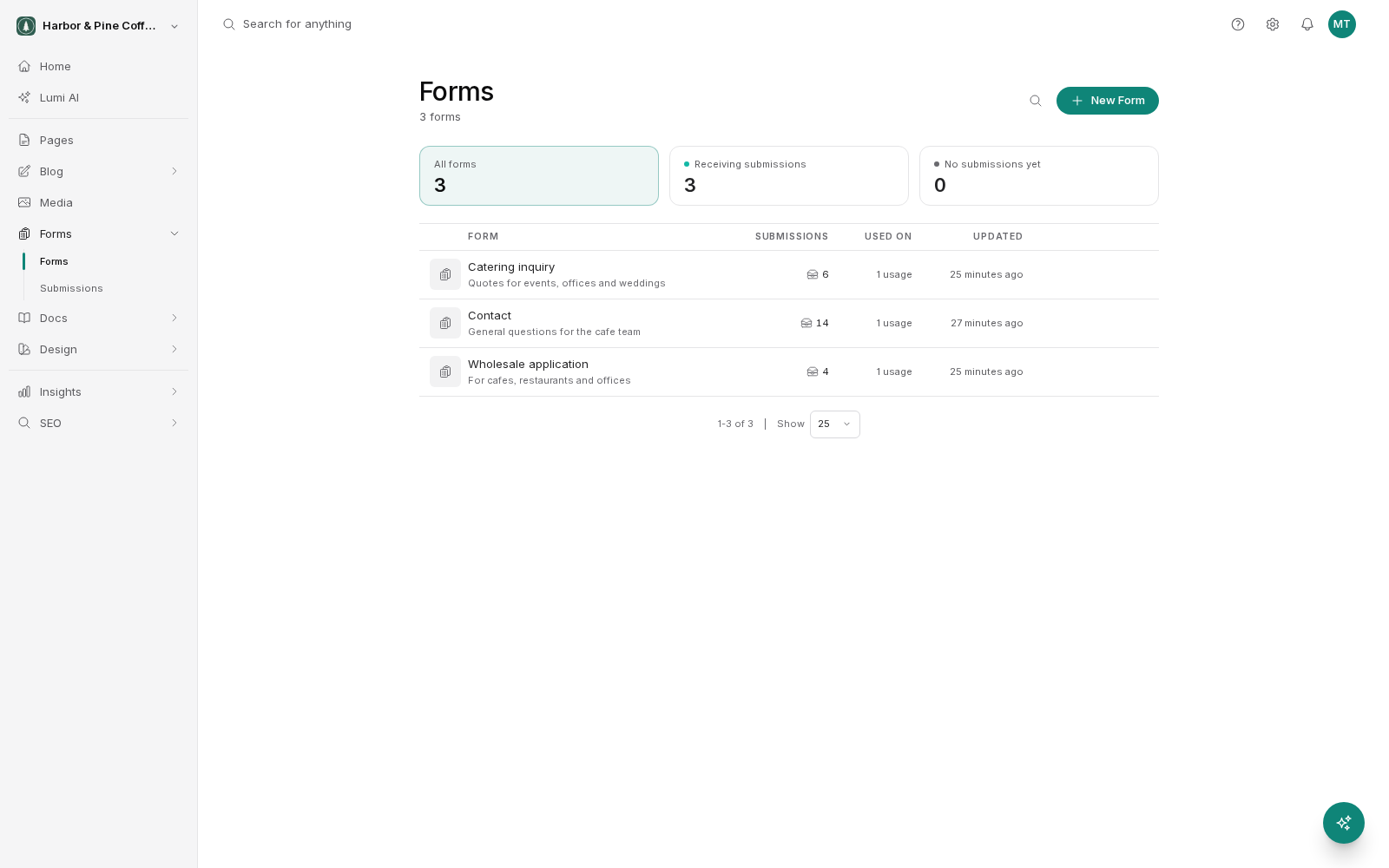
The two halves of a form
Every form has two sides, and it helps to keep them separate in your head.
- Building the form. You decide what to ask for: a name, an email address, a message, a file. You decide which questions are required and what the visitor sees after they send it. This is the form builder.
- Reading the submissions. Once the form is on your site and people start using it, every entry is stored in your account. You read them, mark them off, search them, and download attachments. This is the submissions inbox.
You build a form once. You read submissions from it forever.
Where a form appears
Building a form does not put it on your website. A form is a reusable block. After you build it, you add it to one or more pages. The same contact form can sit on your contact page, your about page, and the bottom of a service page. All three send submissions to the same inbox.
This means you rarely need more than a handful of forms. Build one contact form and reuse it, rather than building a new one per page.
Forms are published, like pages
Forms follow the same draft-then-publish rule as the rest of your site. When you change a form, the change is saved to a draft copy. Visitors keep seeing the old version until you publish.
A brand new form has never been published, so it does not work publicly yet. If you build a form, drop it on a page, and the page goes live before the form is published, visitors will not be able to submit it. Publish the form as well as the page.
The same applies to edits. If you add a required field to a live form and do not publish, the live version still has the old fields.
What to read next
- Building a form covers the builder tabs and every field type.
- Adding a form to a page covers placing it and getting it live.
- Submissions inbox covers reading and managing what comes in.
- Notifications and spam covers getting an email when someone submits, and keeping junk out.
A quick note on what to ask for
Shorter forms get filled in more often. Every extra required field is another reason for someone to give up. Ask for what you genuinely need to reply to them, usually a name, a way to contact them, and what they want. You can always ask follow-up questions in your reply.
If you need a lot of detail, consider making the extra fields optional rather than required. People who want to give you the detail will.
Signups for your email list
A form can add people to your email contacts with the Add to list action. See Collecting signups.