BrightSite keeps a history for everything you can edit. Pages, blog posts, forms, components, layouts, global code, blog designs and documentation pages all have one. It is the safety net behind the whole editing model: a bad change is a nuisance, not a disaster.
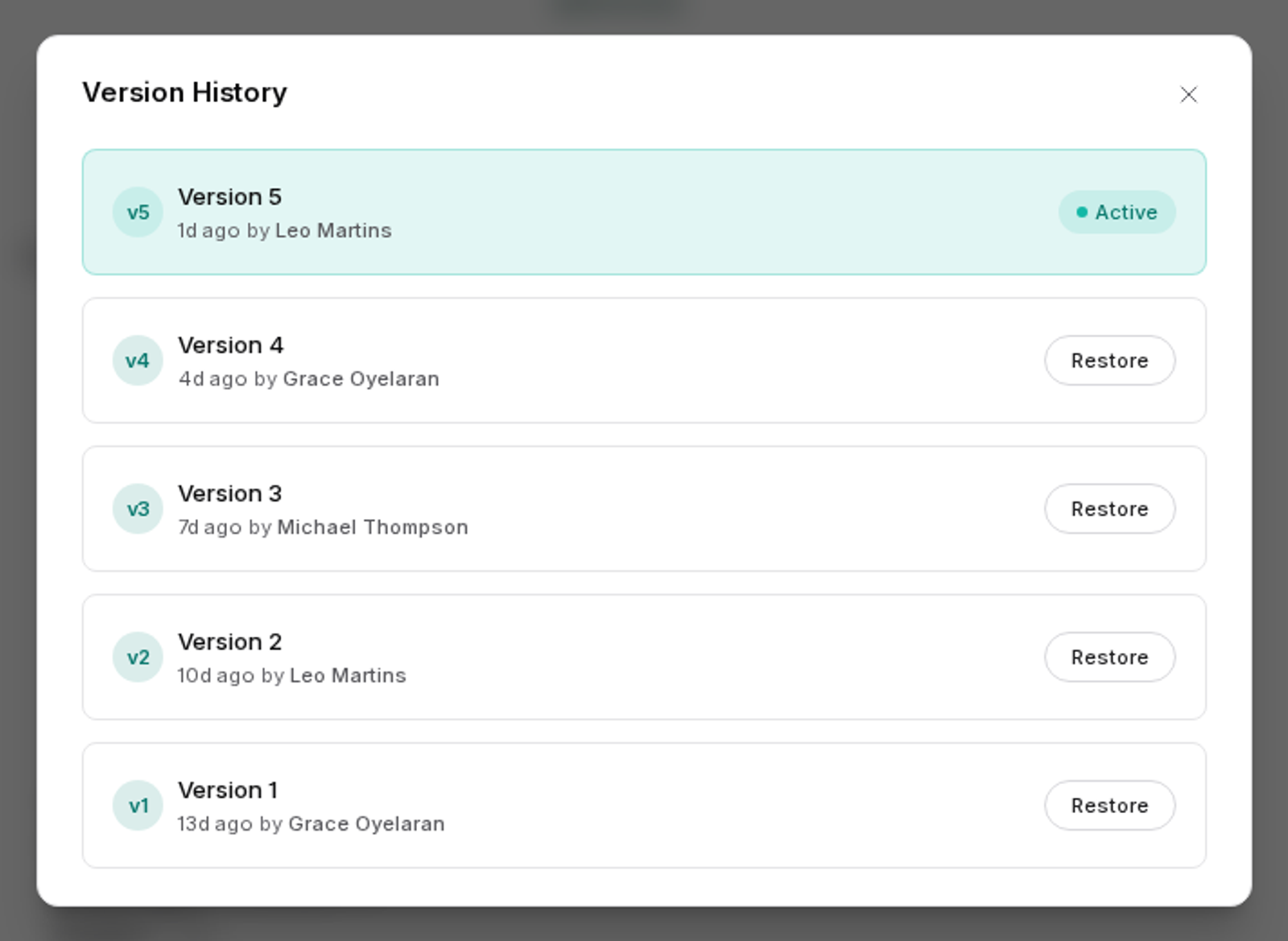
Open the history
Version history is reached from within the editor for the item you are working on, alongside the other actions for that item. It applies to that one item. Each page has its own history, separate from every other page.
The history lists versions newest first. Each entry shows when it was created, who was responsible, and the change note if one was added at publish time. This is where those notes earn their keep: a list of timestamps tells you very little, while a list of short descriptions lets you find the version you want in seconds.
Look at an earlier version
You can open a version from the history to see what the content was at that point. Viewing changes nothing. It is safe to browse the history to work out when something changed, or to copy a paragraph out of an old version without bringing back the rest of it.
Reading before restoring is worth the extra few seconds. Content usually moves on around a change, so a version from two months ago may be right in the one respect you are chasing and out of date in three others. Copying a single section forward is often better than restoring the whole thing.
Restore a version
Restoring takes an old version and makes it current again.
Restoring republishes the item. This is the part to be clear about. It is not a quiet change to your working copy that you review and publish later. The restored version goes to your live site as part of the same action. Visitors will see it.
Two consequences follow. First, be as careful with restoring as with publishing: check you have the right version before you confirm. Second, restoring requires publish permission, not just edit permission. If you can edit a page but not publish it, restore is not available to you, and someone with publish rights on the site has to do it.
Restoring does not erase the history. The version you restored over is still there, so if you restore the wrong one you can go back to what you had. That is a genuine safety net, but it works best if you notice quickly.
Use history to answer questions
History is as useful for finding out what happened as for undoing it. Common cases:
- A phone number or price on the site is wrong, and you want to know when it changed and who changed it.
- Someone reports that a page "used to say" something, and you need to confirm whether it did.
- A page stopped looking right after an edit and you want to see the version that worked.
In each case, read the history first and decide afterward whether restoring is really what you want. Often the answer is to make a small forward edit instead.
Get the most out of it
A few habits make history far more useful later:
- Write a change note when you publish. Ten words is plenty.
- Publish related changes together, so one entry in the history corresponds to one real change.
- Before a large rework of a page, note the current version so you know what to come back to.
For changes spanning many pages at once, a staging site fits better than page-by-page history. It lets you review everything as a whole before any of it reaches the live site.