BrightSite has a search box you can open from anywhere with a single keyboard shortcut. It is the fastest way to reach a page, a blog post, a form, or any section of the app without hunting through the menu. This page covers how to open it and what it can find.
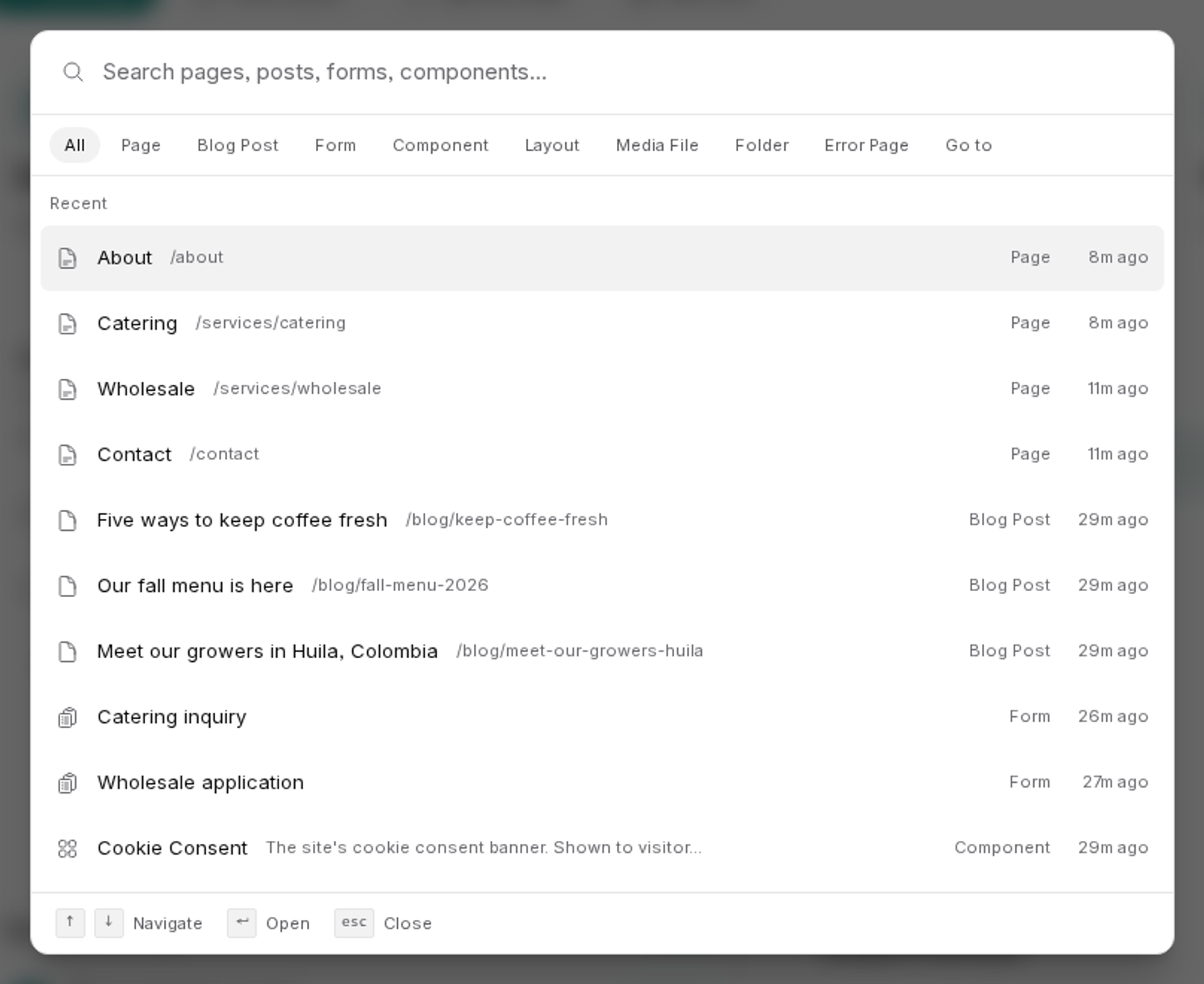
Opening the search box
Press Ctrl + K on Windows or Linux, or Cmd + K on a Mac. A search box opens over whatever you were doing.
It works on every screen inside BrightSite, and it takes over the shortcut from your browser, so you do not need to click anything first.
Press Escape to close it again without going anywhere.
What it searches
Start typing and results appear once you have entered at least two characters. It looks across:
- Pages: by title or by web address
- Blog posts: by title or by web address
- Forms: by name
- Components and Layouts
- Media: both individual files and folders
- Error pages
- Sections of the app itself: typing "media", "analytics", "forms", "import" and so on jumps you straight to that screen
Each result shows what type of thing it is, whether it is published or still a draft, and when it was last changed. That makes it a quick way to answer "did I ever publish that page?" without opening it.
Search matches on names and titles, not on the words inside your page content. To change the same wording across several pages, edit them individually or ask Lumi.
Jumping to recent work
Open the box and type nothing at all, and it shows a Recent list instead: a mix of the pages, posts, forms and components you are most likely to want next. If you are picking up where you left off, this is usually enough on its own.
Moving around with the keyboard
You never need to reach for the mouse:
| Key | What it does |
|---|---|
Ctrl + K / Cmd + K | Open the search box |
↓ and ↑ | Move down and up the results |
Enter | Open the highlighted result |
Escape | Close without going anywhere |
The highlighted result is shaded, and the list wraps around. Pressing ↓ on the last result takes you back to the first.
You can also just click any result with the mouse.