Building a form and putting it on your website are two separate steps. A form you have built sits in your account waiting to be used. Nobody sees it until you place it on a page.
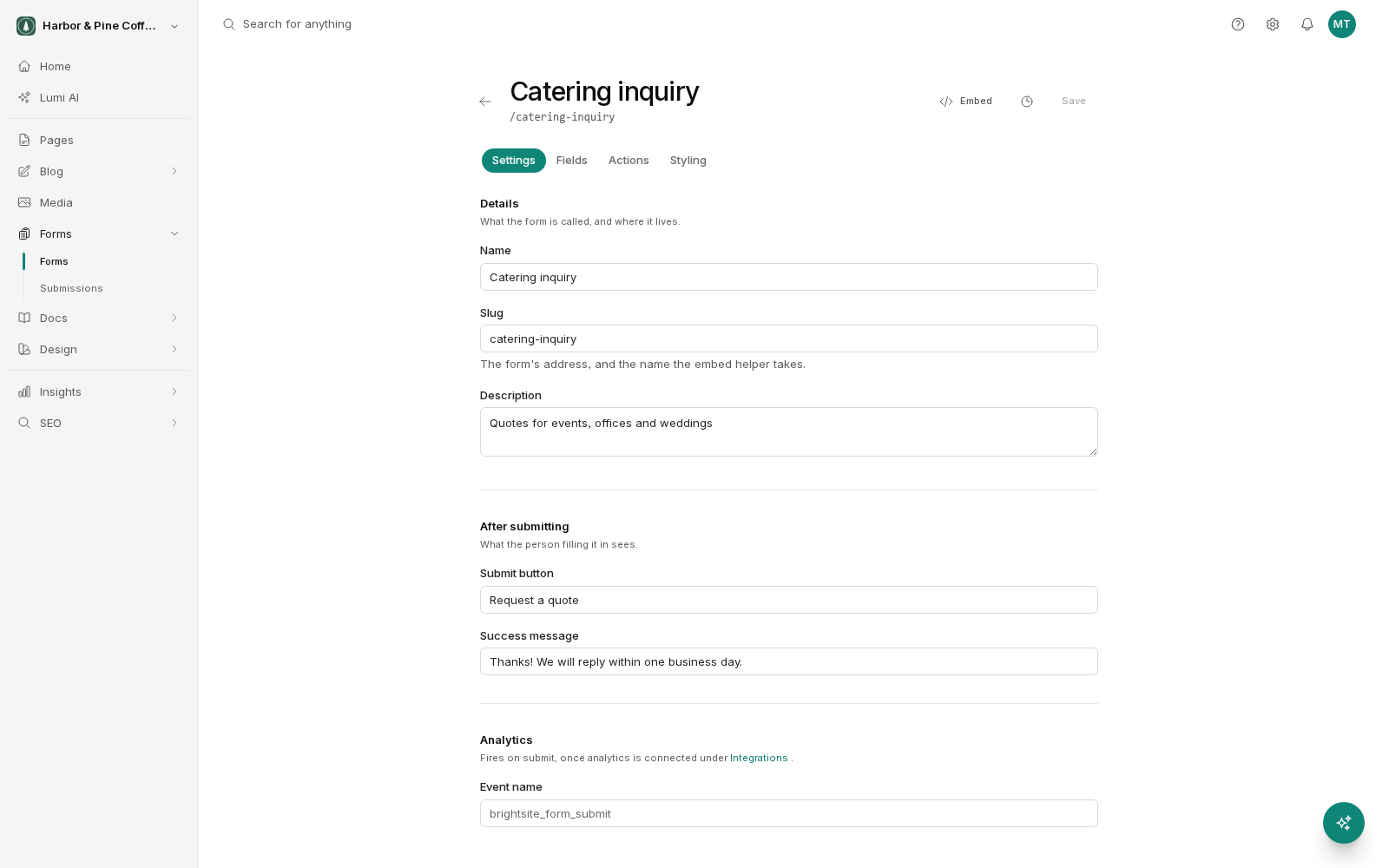
Place the form on a page
Open the page you want the form on in the editor. Add a form to the page and choose which of your built forms it should be. The form then renders in place, using the fields and button text you set in the builder.
You can add the same form to several pages. A contact form on your contact page and again at the bottom of a services page is a common setup. Both send to the same submissions inbox, so you are not splitting your inquiries in two.
You can also add two different forms to one page, though it is usually clearer to give each form its own page or section so visitors are not deciding between them.
Where to put it
A few things that make a form more likely to get used:
- Put the form where the visitor is already convinced. The bottom of a page that explains your service works better than the top of the home page.
- Give it a short heading above it that says what happens, for example "Send us a message and we will reply within one business day."
- Do not bury it behind a link if the whole point of the page is to get inquiries.
- Keep your phone number or email nearby. Some people will not use a form no matter how good it is.
Publish the form as well as the page
This is the step people miss. Two separate things need publishing.
- The form. A form that has never been published will not accept submissions from your live site. Open the form and publish it.
- The page. Adding the form to a page is an edit like any other. It is saved to a draft copy, and the public version of the page does not have the form on it until you publish the page.
If you publish the page but not the form, visitors see the form but it will not work for them. If you publish the form but not the page, the form works fine but nobody can reach it.
The same applies to later changes. If you add a field to a live form, publish the form again. The live site keeps serving the previously published version until you do.
Test it before you rely on it
Once both are published, visit the page on your live site as a visitor would and submit the form yourself with real details. Then check the submissions inbox to confirm it arrived, and check your email if you have set up an email notification.
Do this once when you first set the form up, and again any time you change the fields or the notification settings. A form that silently stopped working is worse than no form at all, because you will not know you are missing inquiries.
Delete your test submission afterward so it does not sit in your inbox looking like a real inquiry.
If the form is not working
Work through these in order.
- Is the form published, not just saved?
- Is the page published since you added the form?
- Are you looking at the live site rather than a preview?
- Does the submission appear in the inbox even though no email arrived? If so the form is fine and the problem is the notification setup.