This walks you through one complete loop: find a page, change it, publish it. Once you have done that, everything else is a variation on the same pattern.
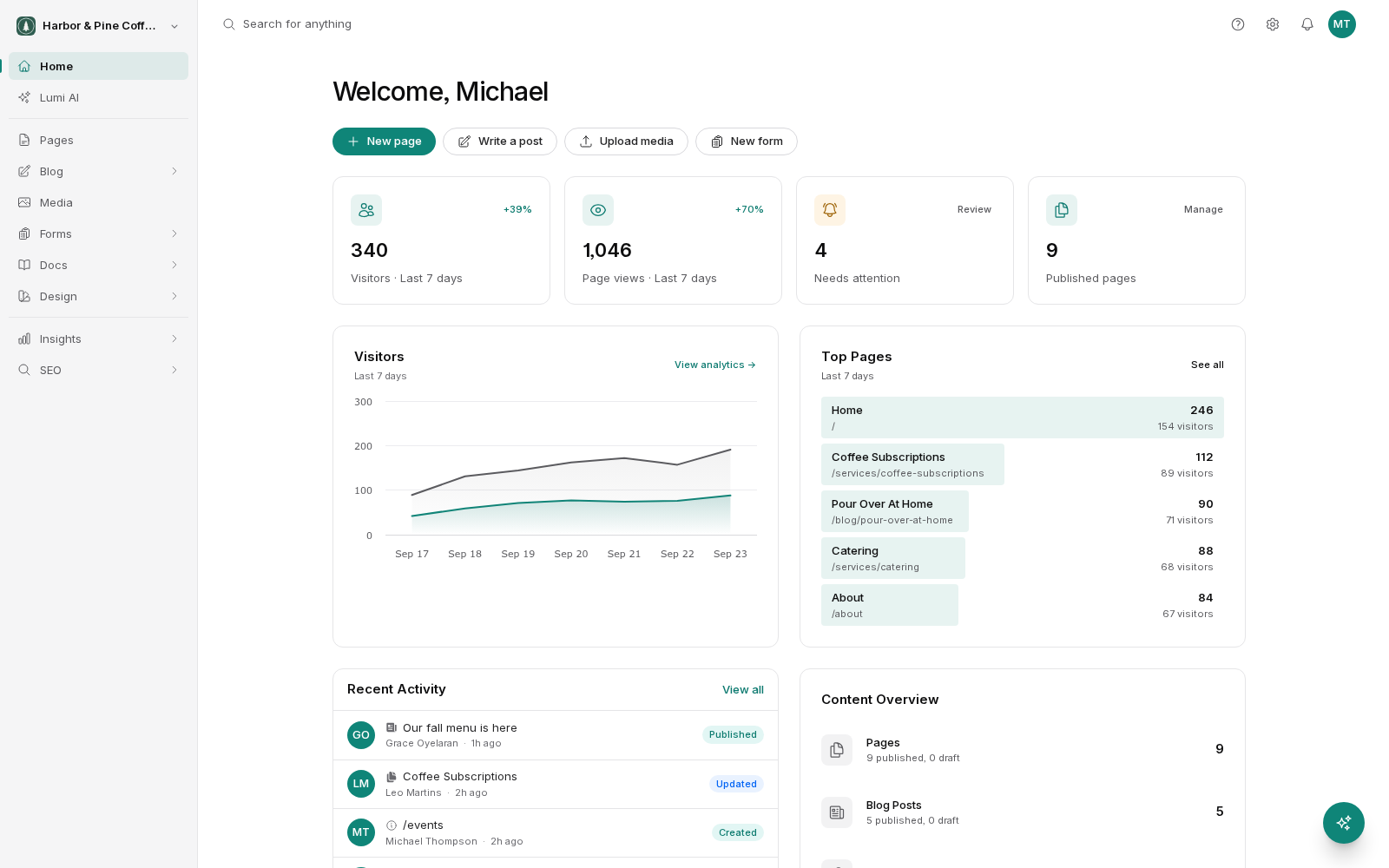
1. Sign in
Go to your BrightSite address and sign in with the email you were invited on. You land on the dashboard, which shows visitor numbers, recent activity and a count of your pages, posts and forms.
2. Find your pages
Click Pages in the sidebar on the left. You will see every page on your site. Pages that sit inside other pages are shown indented beneath their parent.
3. Open the editor
Click a page to open it. The editor has three parts: a tree of the page's elements on the left, your real page in the middle, and a settings panel on the right for whatever you select.
4. Change something
Click any piece of text on the page. Its settings appear in the panel on the right. Type something different there.
Click Save in the toolbar. Nothing has happened to your live site yet. Your change is saved as a draft.
5. Publish it
Click Publish. It is only available once your changes are saved. Confirm, and the change goes live within seconds.
Visit your site in another tab to see it. If the old version is still showing, reload the page. Your browser may have kept a copy.
What you just learned
That gap between step 4 and step 5 is the most important thing about BrightSite. You can change as much as you like and nothing reaches the public until you publish. If a change looks wrong, you can fix it or discard it with no consequence.
Where to go next
Read Touring the app for what every other menu does, or go straight to Using the visual editor if you would rather keep editing.