This is the single most useful idea to understand about BrightSite. Once it clicks, most of the rest of the product explains itself.
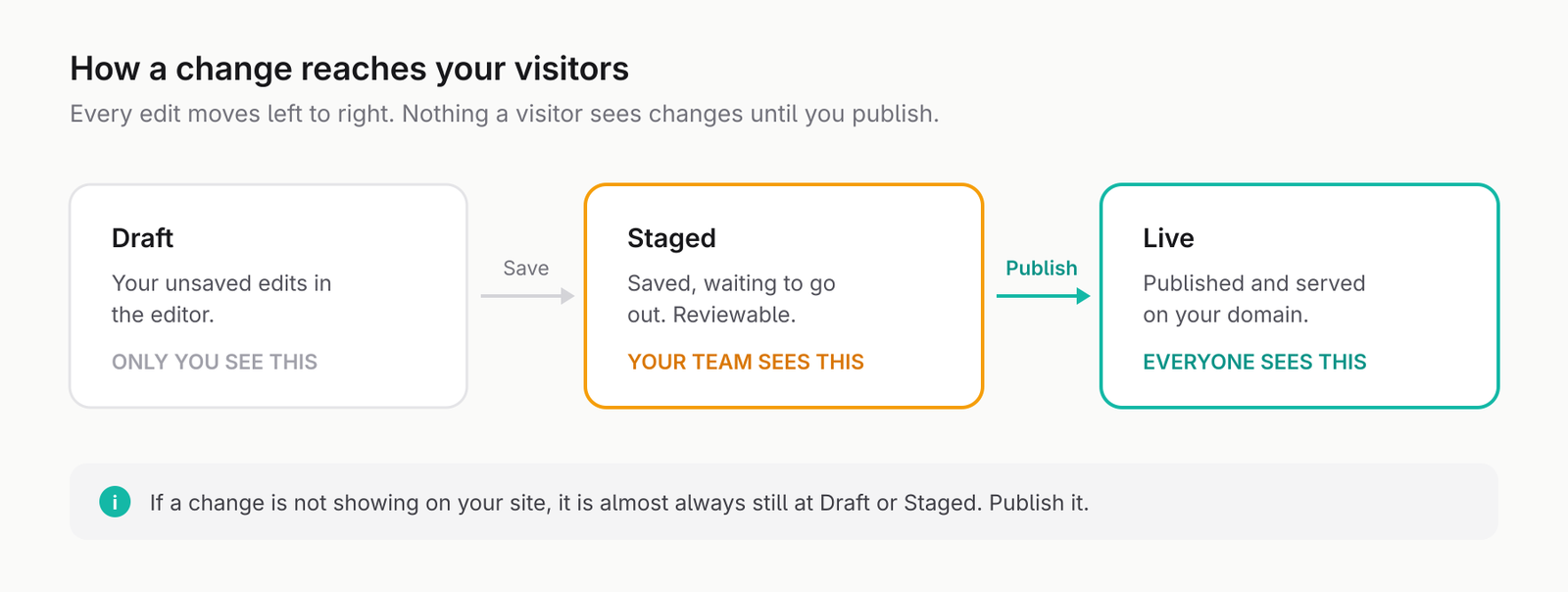
Everything you can edit (a page, a blog post, a form, a component, a layout, your blog designs, even the documentation you are reading) exists as two copies:
- The working copy, sometimes called the staged copy. This is what you see in the editor. It is private to your team.
- The live copy. This is what visitors to your website see. It only ever changes when you publish.
Your edits go into the working copy as you make them. Publishing copies the working copy over the live one. Those are two separate things, and that separation is the whole point.
Why it works this way
Because it makes the editor safe. You can change your home page headline, try three versions of it, get halfway through rewriting a section, leave it for the weekend and come back on Monday. Nobody visiting your site sees any of it. The live page carries on serving the last version you published.
This means you never have to build in a hurry to avoid showing visitors a half-finished page. Experiment freely. The live site is not affected until you decide it is.
It also means a mistake is cheap. If you make a mess of a page and have not published it, the live version is still the good one, and version history can bring your working copy back.
What draft and published mean
Alongside the two copies, each item has a status.
A draft is anything that is not currently public. There is no live copy, so visitors cannot reach it. An item can be a draft in two ways: it has never been published, as with a new page you have just created, or it was published once and has since been unpublished. Either way the content is safe in your account and invisible to visitors.
A published item has a live copy. Visitors can reach it. It may also have newer edits sitting in the working copy that have not gone out yet.
These are different questions and it helps to keep them apart. "Is this page public?" is the status. "Does the public version match what I am looking at?" is the working-versus-live question.
Tell whether something has unpublished changes
When your working copy differs from the live copy, the editor tells you. Open the item and you will see an indication of unpublished changes there, along with the option to publish them. The list of pages or posts shows the status, draft or published, but not whether a published item has newer edits waiting, so the editor is where you check.
If the editor shows no such indication and the status is published, the live site matches what you see. If it does show it, there is work sitting in your account that the public has not seen yet.
Two habits follow from this. Before you tell someone a change is done, open the item and check whether it still shows unpublished changes. And when you look at a page and think "I already fixed that," check the same thing. Usually the change was made but never published.
Where the same idea shows up
It is not only pages. The same two-copy model applies across the product, which is why the publish button appears in so many places:
- Pages and blog posts
- Forms and reusable components
- Layouts and global code
- The blog listing, post template and related-posts designs
- Documentation pages
Each item publishes independently. Publishing a page does not publish an unrelated form. If a change spans several items, say a component and the two pages that use it, you publish each one, or use the bulk actions in the relevant list to publish a batch together.
How this relates to staging sites
The working copy handles one item at a time. Sometimes you want to rework many pages at once and review the result as a whole before any of it goes live. That is what a staging site is for: a private copy of the entire site that you edit and then promote in one go.
The two features work at different scales. Use the working copy for everyday edits to a single page. Use a staging site for a redesign or a large batch of related changes.