Lumi is the AI assistant built into BrightSite. It works on your site from inside the app, so it already knows which organization and site you are in and does not need anything set up.
Opening Lumi
There are two ways in.
- The Ask Lumi button. The round sparkle button in the bottom-right corner of every app screen opens Lumi in a side panel, so you can keep looking at the page you are editing while you type.
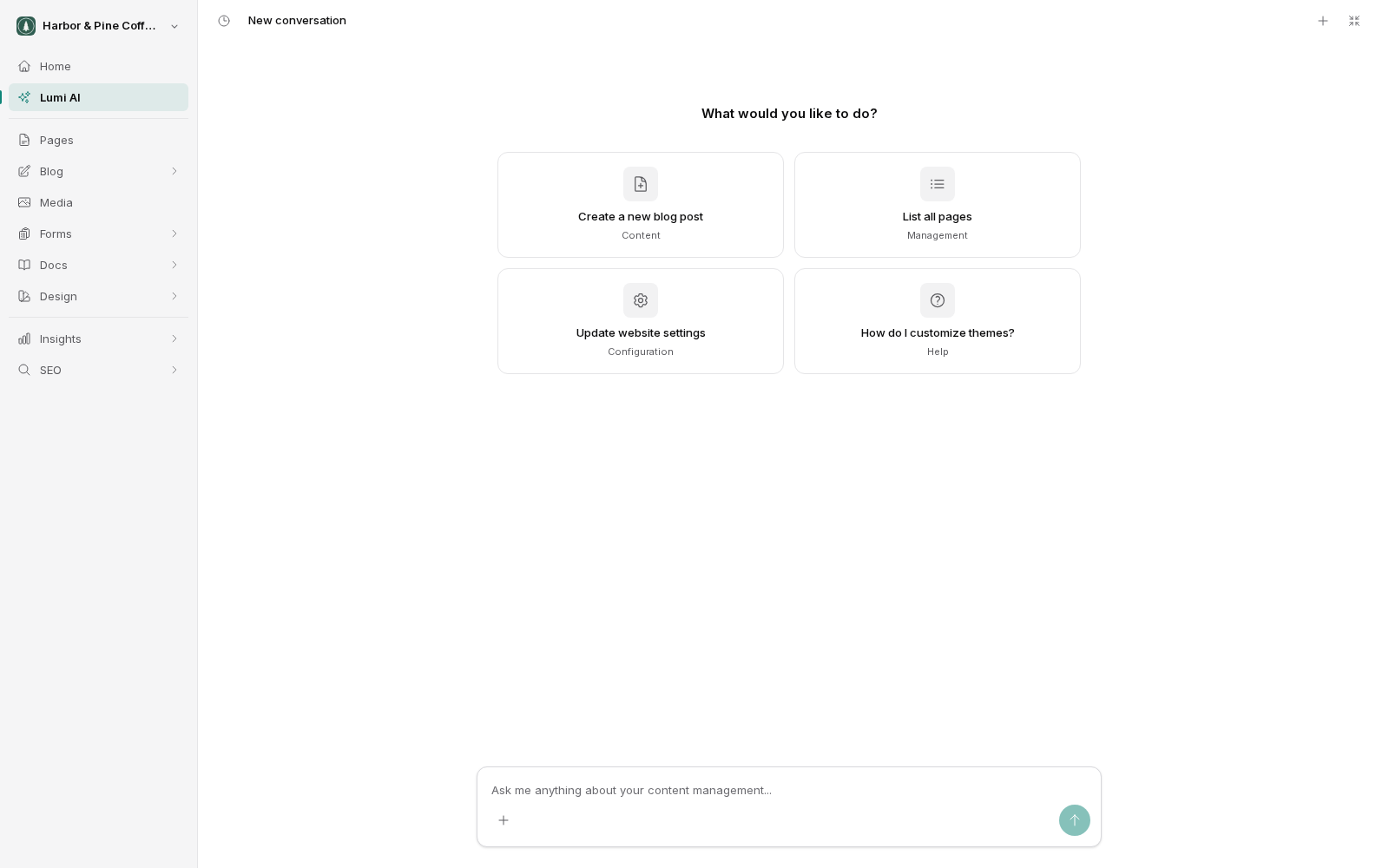
- Lumi AI in the sidebar. The Lumi AI item, just under Home, opens full-page chat at
/app/chat. Use it when you want more room for a longer conversation.
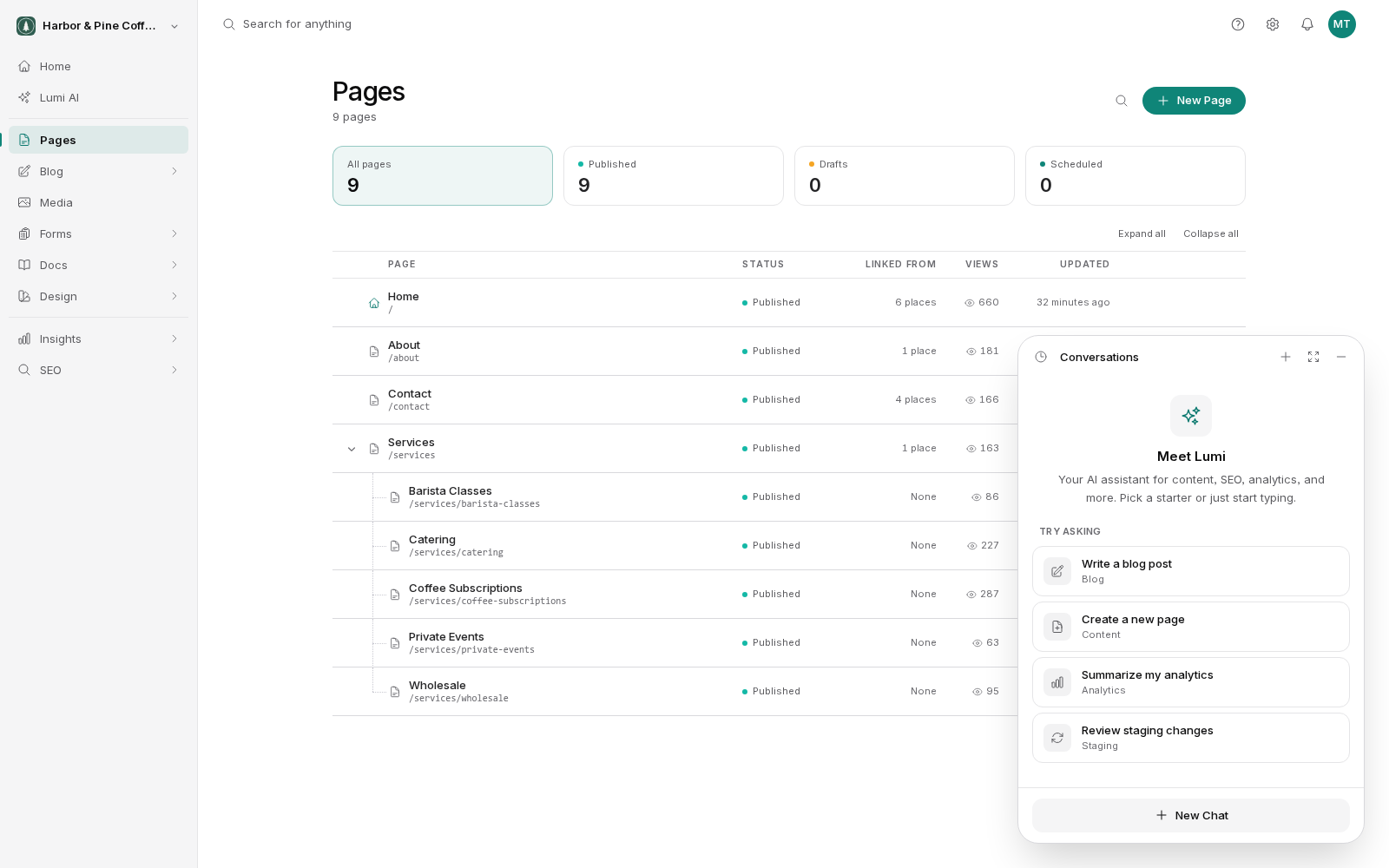
The side panel has an expand button that switches to the full-page view.
Close the panel at any time. Your conversation is kept, so you can come back to it later rather than starting again.
What Lumi can do
- Create and edit content. Ask for a new page or blog post, or for changes to one that exists. Lumi can work on pages, posts, and other content in your site.
- Answer questions about your site. Which pages have no meta description, what a form is collecting, when a post was last updated. Lumi can look at your site to answer rather than guessing.
- Write drafts. Give it an outline, a rough set of notes, or a description of the audience, and it will produce something to edit down. Drafting is where it saves the most time.
- Suggest SEO improvements. Titles, meta descriptions, headings, internal links. Ask it to review a page and tell you what is weak.
Lumi works within your permissions. If your role does not allow publishing, Lumi cannot publish for you.
Conversations persist
Each conversation is kept, so context carries over. You can ask for a draft in the morning, come back after lunch, and ask for changes without explaining the whole thing again.
Start a fresh conversation when you move to an unrelated task. A long thread about your blog is not helpful context when you switch to fixing a contact form, and a clean start usually gets a better answer.
Included in your plan
Lumi is included in every BrightSite plan (Launch, Grow and Scale) at no extra cost. There is no API key to add, no credit balance to watch and nothing to top up.
Use is subject to fair use. BrightSite reviews unusually heavy use rather than blocking it. In rare cases support may pause AI for an account, and Lumi then shows: "AI chat is paused for this account. Get in touch with support and we'll get you going again." An organization admin can also turn AI off for a specific team member.
See AI usage and access for where to see how much AI your organization uses and control who may use it.
Before you start
Two habits worth forming from the first day.
- Review everything. Lumi produces good drafts, not finished copy. Read what it writes before it goes anywhere near your live site.
- Work in draft. Ask for changes as drafts and publish yourself once you are happy. Publishing is the point where you take responsibility for the text.
The next page covers how to ask Lumi for things in a way that gets useful results.