The order and nesting of your doc pages is the navigation your readers use. Get the structure right and most people find what they need without searching.
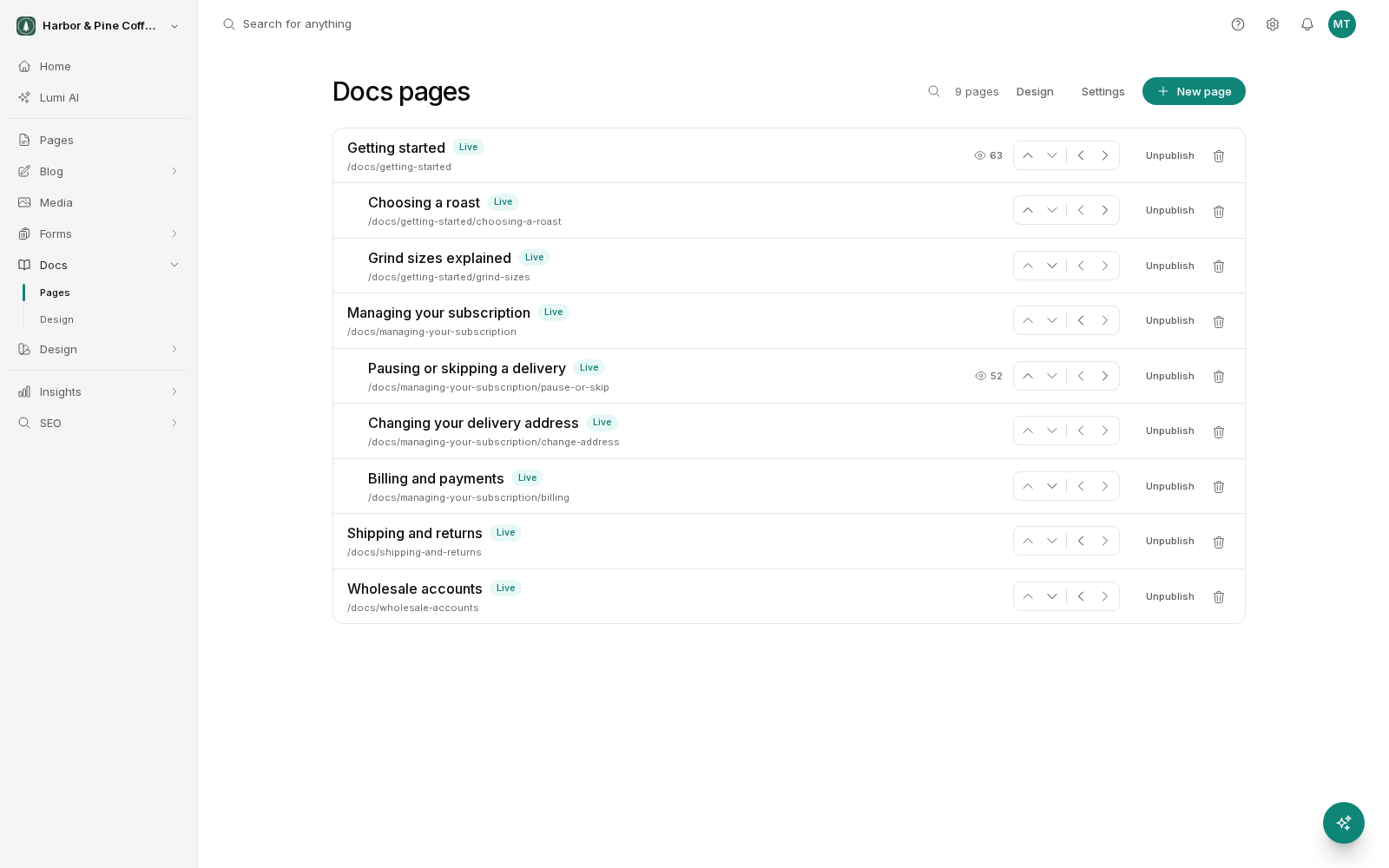
Nesting pages under a parent
Any doc page can sit under another one. The parent becomes a section, and its children appear indented beneath it in the sidebar. A parent page is a real page with its own content, so use it as an overview of the section, not as an empty folder.
Nesting is capped at two levels below the docs root. So you can have a section and a page inside it, and no deeper: the deepest address you can build is /docs/section/page. If you find yourself wanting a third level, the structure is usually trying to tell you the section should be split into two.
Set the parent when you create a page, or change it later by moving the page.
Reordering
Pages within the same parent appear in the order you set, not alphabetically. Reorder them so the sequence matches how someone would work through the section: overview first, then the common tasks, then the edge cases and reference material.
Reordering only affects position in the sidebar. It does not change any URL and does not affect published status.
Moving a page
Moving a page changes its parent. The page keeps its content, its slug, and its published state; only its place in the tree changes.
When you move a page, its children move with it. Watch the depth limit here: if you move a page that has children of its own down a level, the whole branch has to still fit within the limit.
Moving or renaming changes the URL
A doc page's URL is built from the chain of parents above it plus its own slug. So two things change the URL:
- Changing the page's slug.
- Moving the page to a different parent, which also changes every child's URL.
BrightSite handles this for you. When a URL changes, a redirect is left behind automatically, pointing the old address at the new one. Old links in emails, in search results, and on other sites keep working. You do not need to create the redirect yourself.
This automatic redirect is specific to documentation pages. Blog posts do not get one. See Writing a post.
Redirects are cheap, but they are not free of consequence. Search engines take time to catch up with a changed URL, and a page that moves repeatedly builds a chain of redirects. Settle on a structure early and move things rarely.
Deleting a page
Deleting removes the page permanently. Before deleting, consider unpublishing instead: it takes the page out of public view and keeps the content.
A page that has children cannot be deleted. Move the children to another parent first, or delete them, and then delete the parent. This is deliberate: it stops you removing a whole section of your docs with one click.
Structuring a docs site
A few things that hold up well as a docs site grows:
- Group by what the reader is trying to do, not by which part of your product it belongs to.
- Keep top-level sections to a number someone can scan, roughly five to ten.
- Give every section a parent page that explains what is in it.
- Put the page people need most at the top of its section.
- Prefer more pages, each focused, over a few very long ones. Search finds a focused page more reliably.
Hidden pages and structure
Hiding a page removes it from the sidebar only. Its children are promoted and appear under the nearest visible page above it. If you hide a section parent expecting the whole section to disappear, you will instead see all its children move up a level.