An API key lets an AI tool or script connect to BrightSite as you. It is an alternative to signing in through the tool, and it suits anything that runs without a browser.
Creating a key
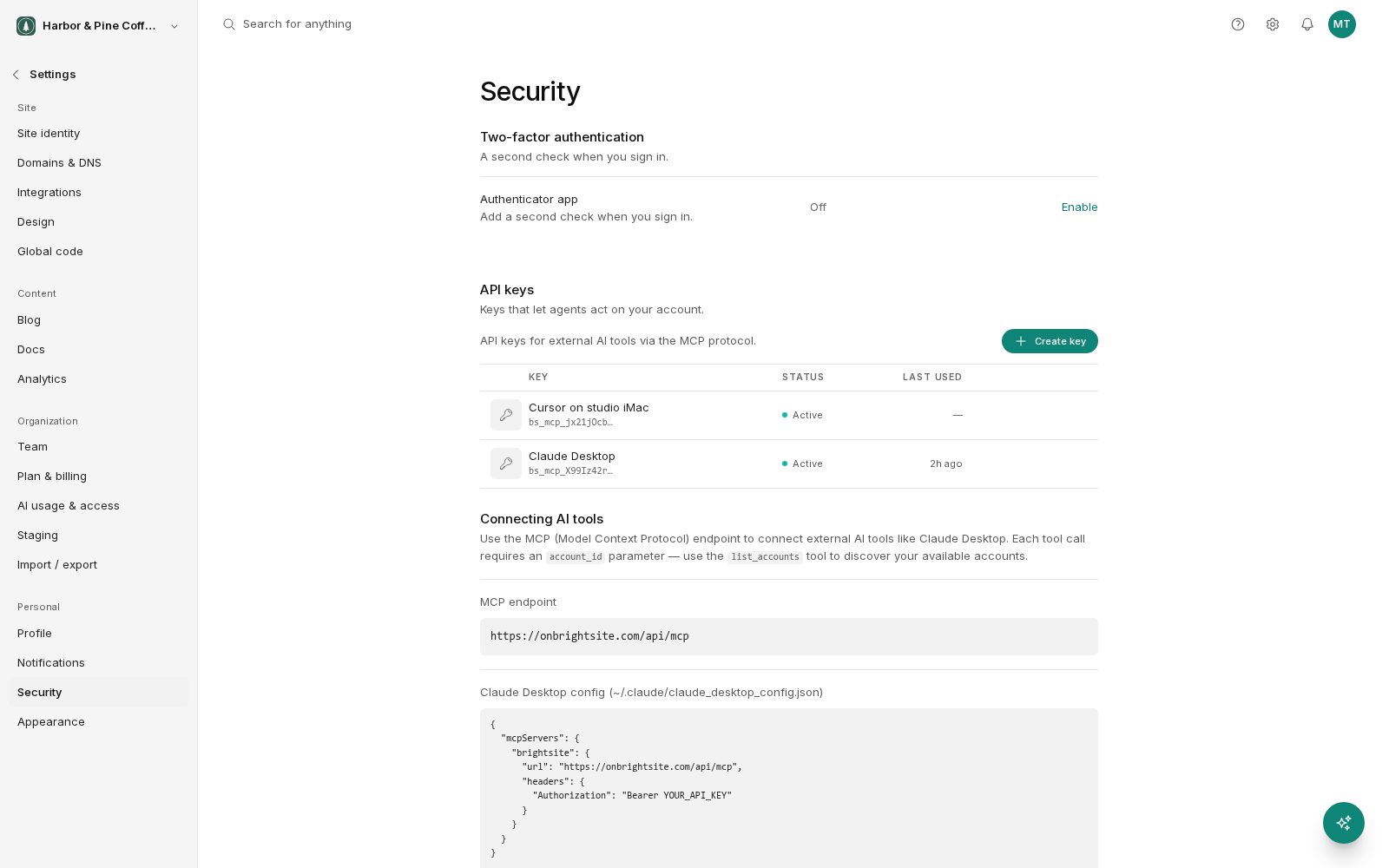
Open User Settings (click your avatar in the top right, then Settings), go to the Security tab under Personal (/app/settings/security), and find the API keys section. Create a key and give it a name describing where it will be used, such as "laptop Claude" or "nightly import script." Names are the only way you will tell keys apart later. Keys start with bs_mcp_.
The Connecting AI tools box on the same tab shows the connection address and a ready-made Claude Desktop config snippet.
Keys are per user, not per organization
This is the most important thing on this page.
An API key belongs to your user account, not to a single organization. One key reaches every organization you belong to.
The key sits under User Settings, not under an organization's settings, because that is what it is: your personal credential. If you belong to your own organization plus eight client organizations, a key you created for one job can act on all nine.
Two consequences follow.
- Agencies: handing a key to a contractor for one client's site gives them access to all your clients. If someone should only reach one organization, invite them as a team member of that organization and let them create their own key.
- Every request names an account. Because the key spans organizations, the account id in each call decides which site is touched. Check it before running anything that writes.
Shown once
The key is displayed once, when you create it. After you leave that screen it cannot be shown again, because BrightSite does not keep a readable copy.
Put it in a password manager as soon as it appears. If you lose it, you cannot recover it; you revoke it and create a new one.
Do not paste keys into chat messages, emails, shared documents, or a file committed to a code repository. A key in a public repository is treated as compromised the moment it lands there.
Treat it like a password
A key is a login. Anyone holding it can act as you in every organization you belong to, without your password and without any second factor. It deserves the same care as the password itself.
Revoking
Revoke a key from the same screen. Revocation is immediate: any tool using it stops working at once.
Revoke a key when:
- You suspect it has leaked, or it appeared somewhere it should not have. Revoke first, investigate afterward.
- The machine it was stored on is lost, sold, or being reset.
- Someone who had it leaves your team.
- You are no longer using whatever you made it for.
Creating separate keys for separate places is worth the small extra effort. When one needs revoking, you only break the one thing that used it.
Your role still applies
A key does not grant extra access. It carries exactly the permissions you have in each organization, and those permissions are checked on every call.
If your role in an organization is a viewer, a tool using your key can read that organization's content and cannot publish, delete, or change settings there. If you are an admin in one organization and a viewer in another, the same key does more in the first than in the second. Rights change the moment your role changes, with no need to reissue anything.