Every site is made of pages. A page is one address on your site, such as your home page, an about page or a contact page. The page list is where you create them, organize them and see what state they are in.
Click Pages in the sidebar to get there. You can also press Ctrl+K (Cmd+K on a Mac) to open the command palette and jump straight to a page by name.
Read the page list
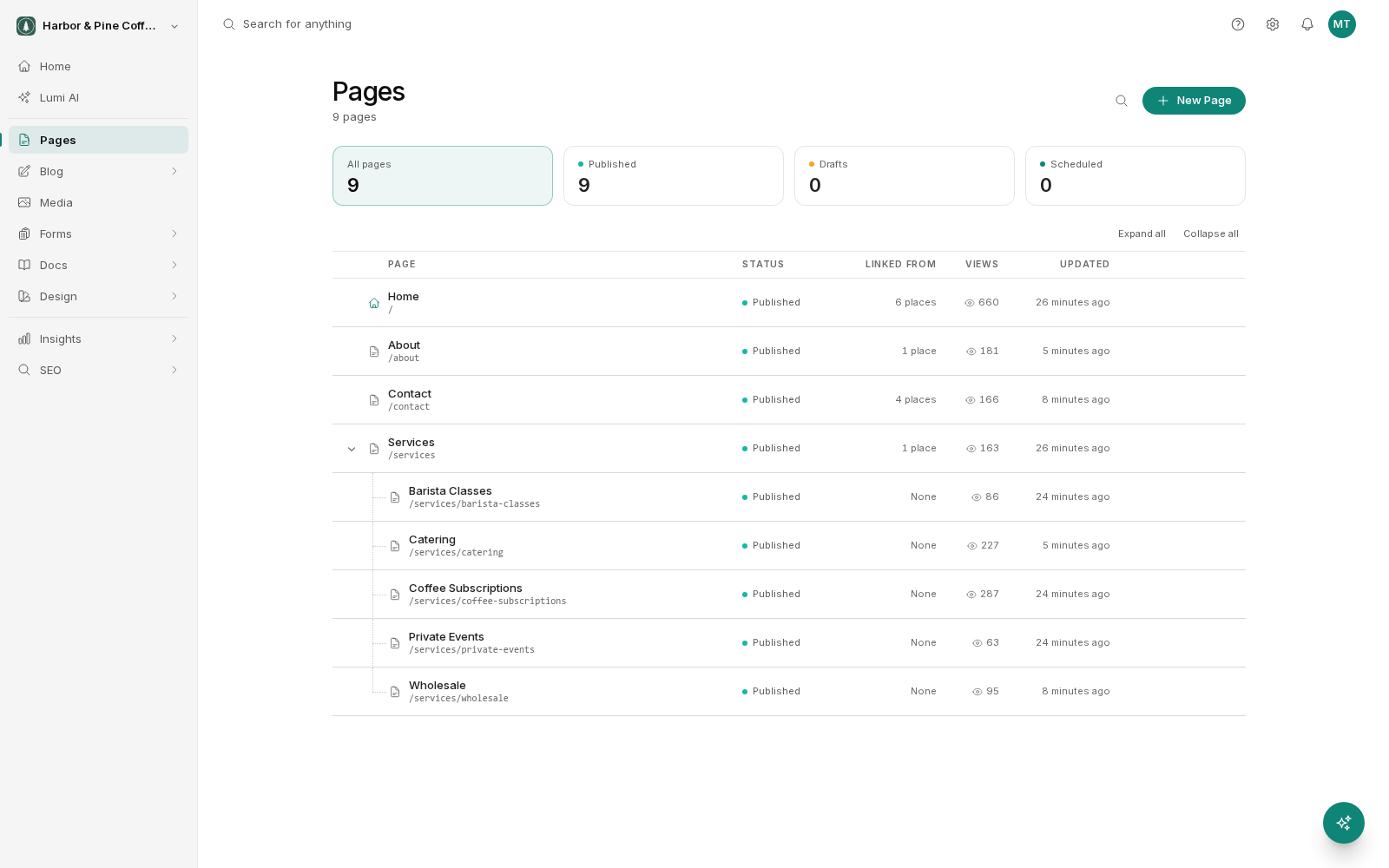
The list shows every page on the site with its title, its address and its status. Pages are shown as a tree, nested under their parents, so you can see the shape of the site:
- Click the arrow beside a parent page to open or close its children.
- Expand all and Collapse all, above the list, open or close every parent at once.
The cards along the top, All pages, Published, Drafts and Scheduled, show how many pages are in each state. Click one to filter the list to those pages. Scheduling a page to go live at a later time is not available yet, so publish a page when you want it live.
The search box filters by title and address. On a site with more than a handful of pages this is usually faster than scrolling.
Understand page status
A page is either a draft or published.
A draft page exists in your account but nobody visiting your site can reach it. A published page is live and public. This applies to changes too: when you edit a published page, your edits are staged as a separate copy. The public version stays exactly as it was until you publish. Nothing you do in the editor appears on the live site by accident.
The page list shows whether a page is a draft or published. To see whether a published page has newer edits still waiting to go out, open it in the editor. The editor tells you when there are unpublished changes and gives you the option to publish them.
Create a page
Click New Page at the top of the page list. You give the page a title and an address (the slug) and it is created as a draft. From there you open it in the visual editor and build it, then publish when it is ready.
If you want a page that is similar to one you already have, duplicate it instead. Duplicating copies the content and the settings into a new draft page with a new address, leaving the original untouched. It is usually faster than starting from an empty page.
Nest pages under a parent
Pages can sit under other pages, and the address decides where. A page whose address is services/roof-repair sits under the page at services in the list. This keeps related pages grouped and makes the addresses read sensibly.
To move a page under a different parent, change its address in the Path field of the page's settings. That changes the page's public address, so treat it the same way you would treat any address change. Add a redirect from the old address so existing links and search results still work.
Delete pages and use bulk actions
You can select several pages at once and act on them together, publishing, unpublishing, duplicating or deleting a batch rather than one at a time.
Deleting a page removes it, and if it was published it stops being reachable on your site. Before deleting, click the usage count on the page's row to open Page Usage. It shows you where that page is referenced, including the navigation menus and other pages that link to it. Deleting a page that other pages link to leaves those links pointing at nothing, so it is worth a look first.
Deletion is not something you should assume you can undo casually. If you are unsure, unpublish the page instead: it disappears from your public site but the content stays in your account.