Settings → Import / Export lets you take a copy of your whole site as a file, and put that file into another organization. It is how you make your own backups and how you move a site from one place to another.
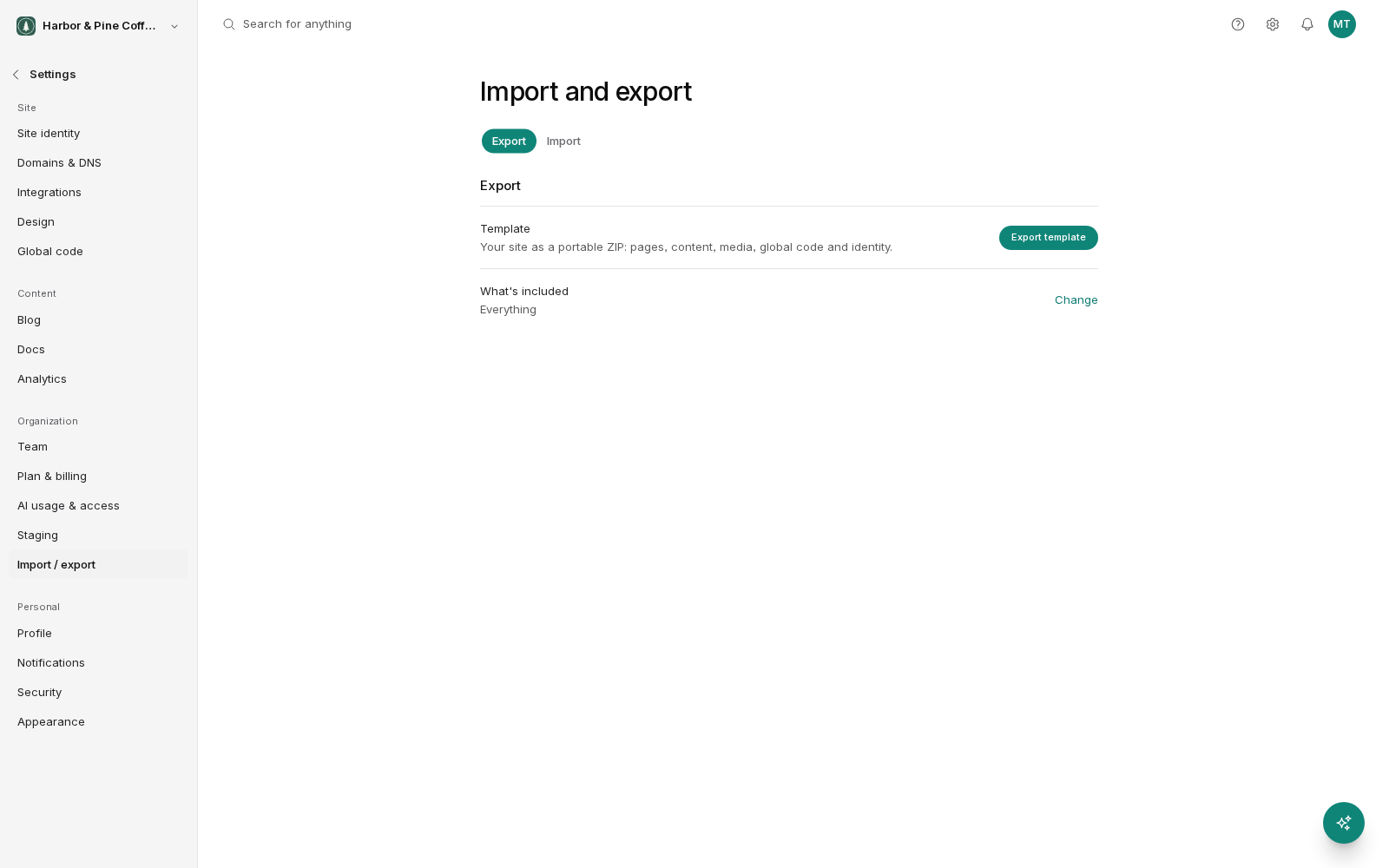
Exporting your site
An export packages up your site (its pages, content, structure and settings) into a single downloadable archive.
Exporting is read-only. It does not change or interrupt your live site, and visitors are unaffected while it runs.
Once it finishes you download the archive and keep it wherever you keep your business files. It is a file on your computer, so it is only as safe as where you put it. Somewhere backed up is better than a downloads folder.
When to export
- Before a large change. A redesign, a big content restructure, a bulk edit. Version history covers individual pages; an export covers the whole site.
- On a schedule. Monthly or quarterly, depending on how often your site changes. An export from a year ago is a poor substitute for the site you have now.
- Before ending a subscription. Take your content with you.
- Before handing over to someone else. A copy for your records.
Importing
An import takes an archive and loads it into an organization. This is what you use to move a site between organizations: export from one, import into the other.
Common reasons to import:
- An agency building a site in their own organization and moving it to the client's.
- Using an existing site as the starting point for a new one.
- Restoring content from an export you took earlier.
Import into an empty organization where you can. Importing into an organization that already has content is more complicated to reason about. Decide first what you expect to happen to what is already there.
It runs as a background job
Both import and export run in the background rather than making you wait. Progress is shown as they go.
You can leave the page and come back. The job carries on without the browser tab open. For a large site with a lot of media, this can take a while. That is normal, not a fault.
If a job fails, note what it says before starting again. Retrying the same operation without knowing why the first one failed usually produces the same result.
What an export is not
Two things worth being clear about.
An export is not a website you can host elsewhere. It is a BrightSite archive, meant to be imported back into BrightSite. It is not a folder of files you can upload to another web host.
An export is not automatic. It happens when you run it. If you want regular copies, put a recurring reminder in your calendar. An export you meant to take last quarter is worth nothing.
After importing
Check the site over before pointing anything at it:
- Open several pages and confirm they render as expected.
- Check images are loading.
- Follow internal links and confirm they go where they should.
- Check your settings. Domains, integrations and identity may need setting up in the new organization.
- Publish what needs to be live.
Permissions
Import and export affect the whole site, so they need appropriate access, typically admin. If the option is not available to you, ask an admin in your organization.