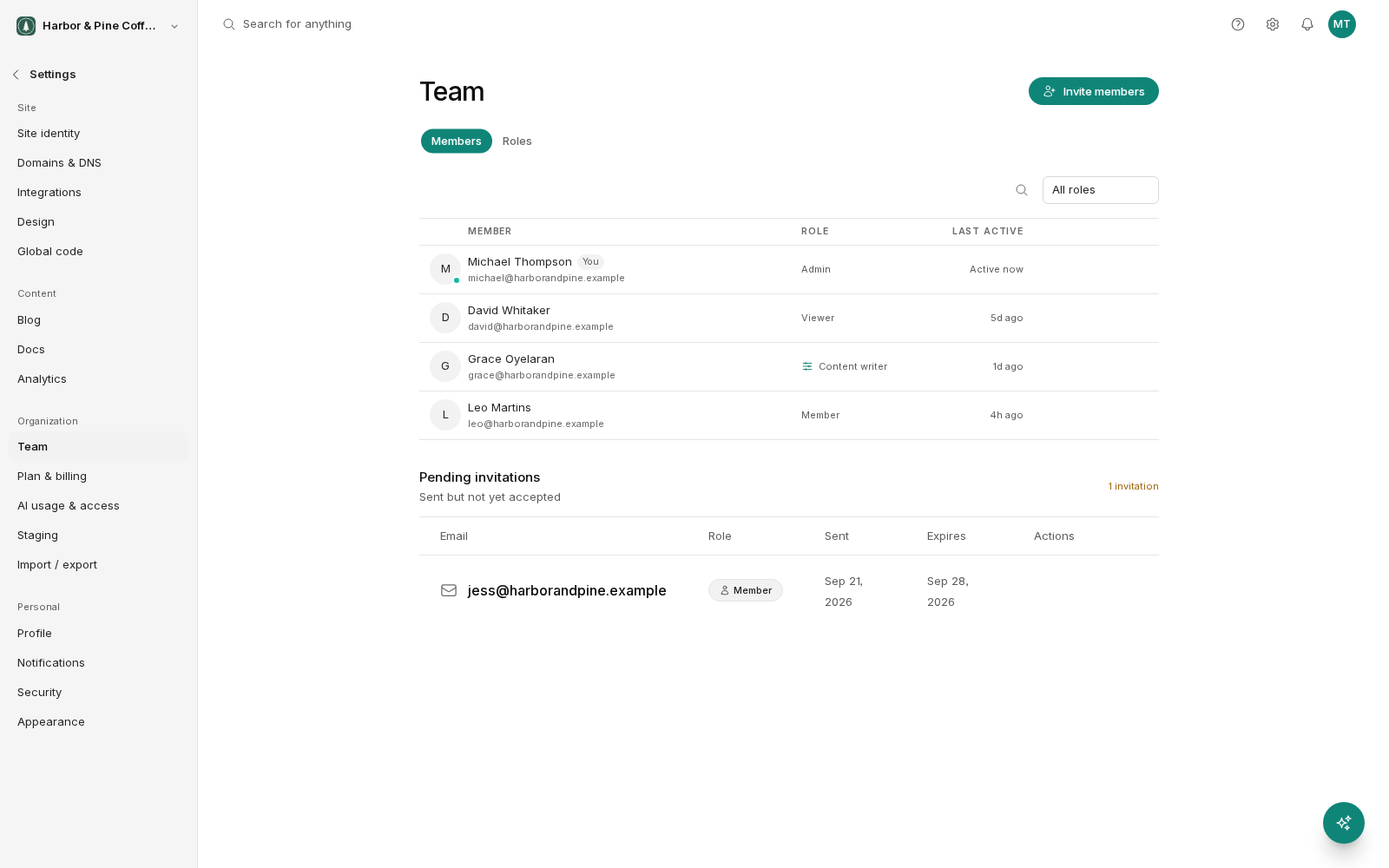
Team members are managed in Settings → Team. You can see everyone who has access, invite new people, change what they can do, and remove them.
People join an organization, not BrightSite
This matters more than it sounds. When you invite someone, you are giving them access to your organization and its site. You are not creating an account for them on BrightSite as a whole.
Two consequences follow:
- Someone can be in several organizations with a different role in each. An agency designer might be an admin in one client's organization and a viewer in another.
- Removing someone from your organization does not delete their BrightSite account. It only revokes their access to your site.
If you run more than one organization, each has its own team list. Adding someone to one does not add them to the others.
Sending an invite
To invite someone, you need three things:
- Their email address. Use the address they will sign in with. If they already have a BrightSite account, use that address so access is added to their existing account rather than creating a second one.
- A role. This decides what they can do. See the Roles and permissions page for what each one covers. Start with the least access that lets them do their job. You can always raise it.
- An optional message. A line of context that goes out with the invitation email. Worth adding when the recipient may not be expecting it.
They get an email with a link. Following it either signs them in and adds your organization to their account, or walks them through creating an account first.
Pending invitations
An invitation that has not been accepted shows as pending in your team list. Pending people have no access at all until they accept.
Two things you can do with a pending invitation:
- Resend it. Use this when the first email did not arrive, or was deleted. Ask them to check their spam folder before you resend. Invitation emails are a common thing for spam filters to catch.
- Cancel it. This voids the invitation and its link stops working. Cancel when you sent it to the wrong address, or when the person no longer needs access.
To fix a typo in an email address, cancel the invitation and send a new one. There is nothing to edit on an invitation that is already out.
Changing someone's role
You can change a member's role at any time from the team list. The change applies immediately. They do not need to sign out and back in.
Raise someone's role when their responsibilities grow. Lower it when they change job or move to a different client. Reviewing the team list every few months catches access that outlived its purpose.
Removing a member
Removing a member revokes their access to this organization straight away. They keep their BrightSite account and any other organizations they belong to.
Work they already did stays. Pages they wrote, posts they published, and media they uploaded all remain on your site. Removing a person does not remove their contributions.
Keep at least one admin. If the only admin leaves, promote someone else before removing them.
Who can manage the team
Managing the team (inviting, changing roles, removing people) requires the permission to do so, which admins have. Members and viewers can typically see who is on the team but not change it. If the invite option is not available to you, ask an admin in your organization.
Practical habits
- Invite people with the role they need today, not the role they might need later.
- Use one address per person. Shared inboxes make it impossible to tell who did what.
- Remove contractors when the engagement ends, on the day it ends.
- Keep more than one admin so you are never locked out by one person's absence.