Global code lets you add your own CSS, JavaScript and Tailwind configuration across the whole site. It is in Settings: click the cog icon in the top right, then Global code under Site.
Most people never open it, and that is the correct outcome. This page explains what is there so you know when it applies and, more usefully, when it does not.
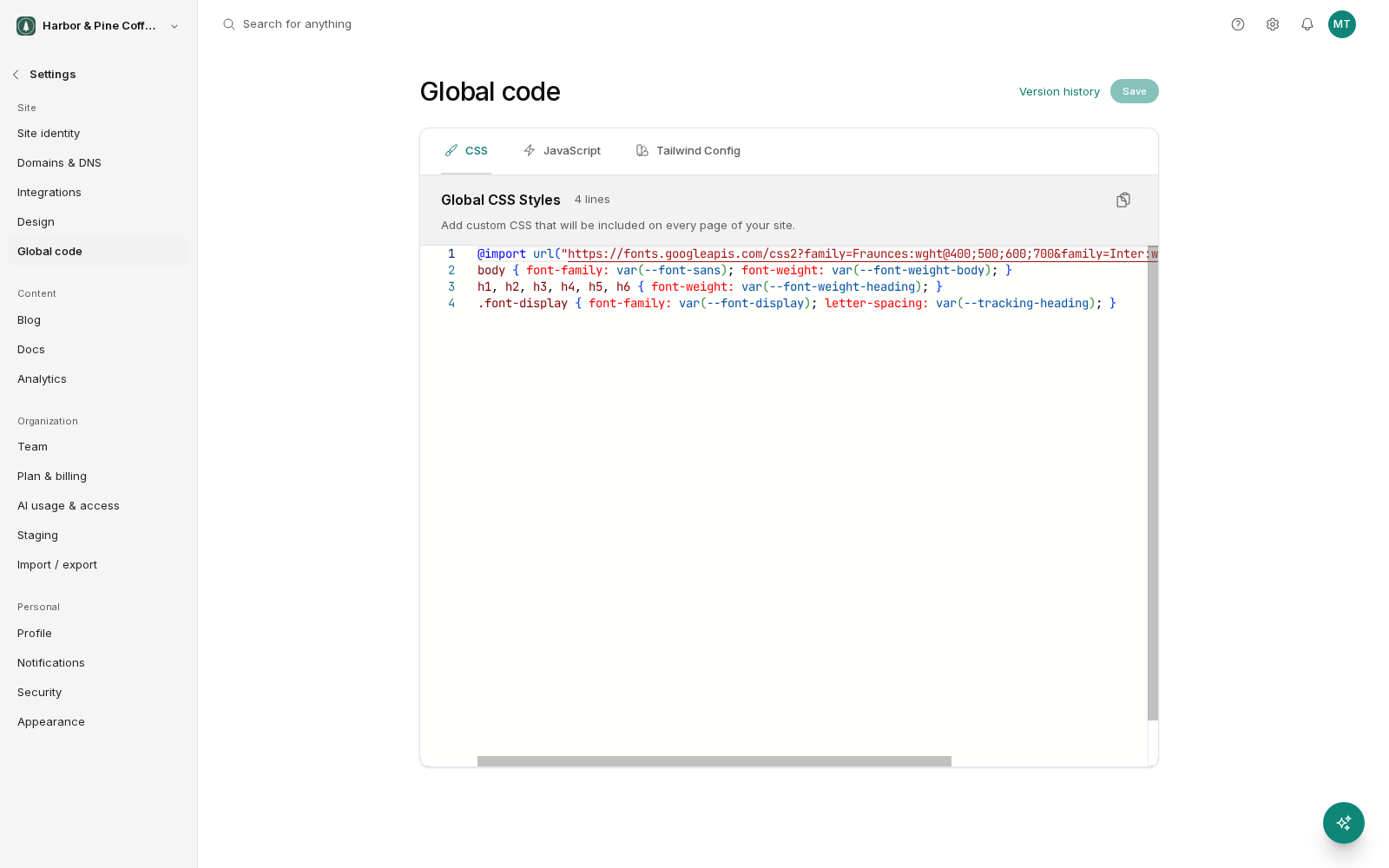
Know what the three tabs do
CSS holds styling rules that apply site-wide: a color, a spacing adjustment, a tweak to how something looks. These rules load on every page.
JavaScript holds code that runs in the visitor's browser on every page. This is where a third-party snippet usually goes if it is not already covered by a built-in setting.
Tailwind config adjusts the design system the site is built on, such as adding a custom color to the palette or a font size so it can be used consistently. This one changes how styling classes behave across the site, so it has the widest reach of the three.
Know when you actually need it
Genuine reasons to use global code:
- A third-party tool gives you a snippet with no built-in place to put it, such as a live chat widget, a booking embed, or a niche tracking script.
- You need a styling rule that applies everywhere and there is no setting for it.
- Your agency is extending the design system with brand colors or type sizes.
If you want to go further than a snippet, for example a page with sign-in and a database, that works too. Can you build a web app on a website builder? walks through pairing BrightSite with Supabase and when an app builder is the better tool.
Reasons that are not good ones:
- Changing one thing on one page. Edit that page instead.
- Analytics that the site already supports through its own settings. Check the tracking settings before pasting a script here.
- Pasting code you found online without understanding it.
Understand the risks
Global code applies to every page with no safety net, which makes it the one part of the platform where a mistake is site-wide.
- A CSS rule that is too broad can affect elements you never intended, on pages you did not check.
- A JavaScript error can stop other scripts on the page from running. Broken JavaScript can leave parts of your site unresponsive.
- Every script you add makes pages slower to load. Slower pages lose visitors and can affect search rankings.
- Third-party scripts can read what happens on your pages. Only add code from a source you trust, and check whether it has implications for your privacy policy.
If you are not confident about a piece of code, ask whoever maintains your site before publishing it. That is a reasonable thing to do, not a failure.
Publish and roll back
Global code stages like everything else. You save your changes and they sit as a draft; your live site keeps running the currently published code until you publish.
Global code keeps a version history, so every published version is recorded and you can go back to an earlier one. That history is the thing that makes global code manageable: if a change causes a problem, restore the last known-good version rather than trying to debug live.
Restoring an old version publishes it immediately, so it counts as publishing rather than editing and requires publish permission.
Change it safely
- Make one change at a time. If you publish four things and the site breaks, you do not know which one did it.
- After publishing, load several pages, not just the one you had in mind, on both desktop and a phone.
- Note what you changed and why. In a year, nobody will remember what the snippet was for.
- Remove code for tools you no longer use. Old scripts keep loading and keep slowing the site down.