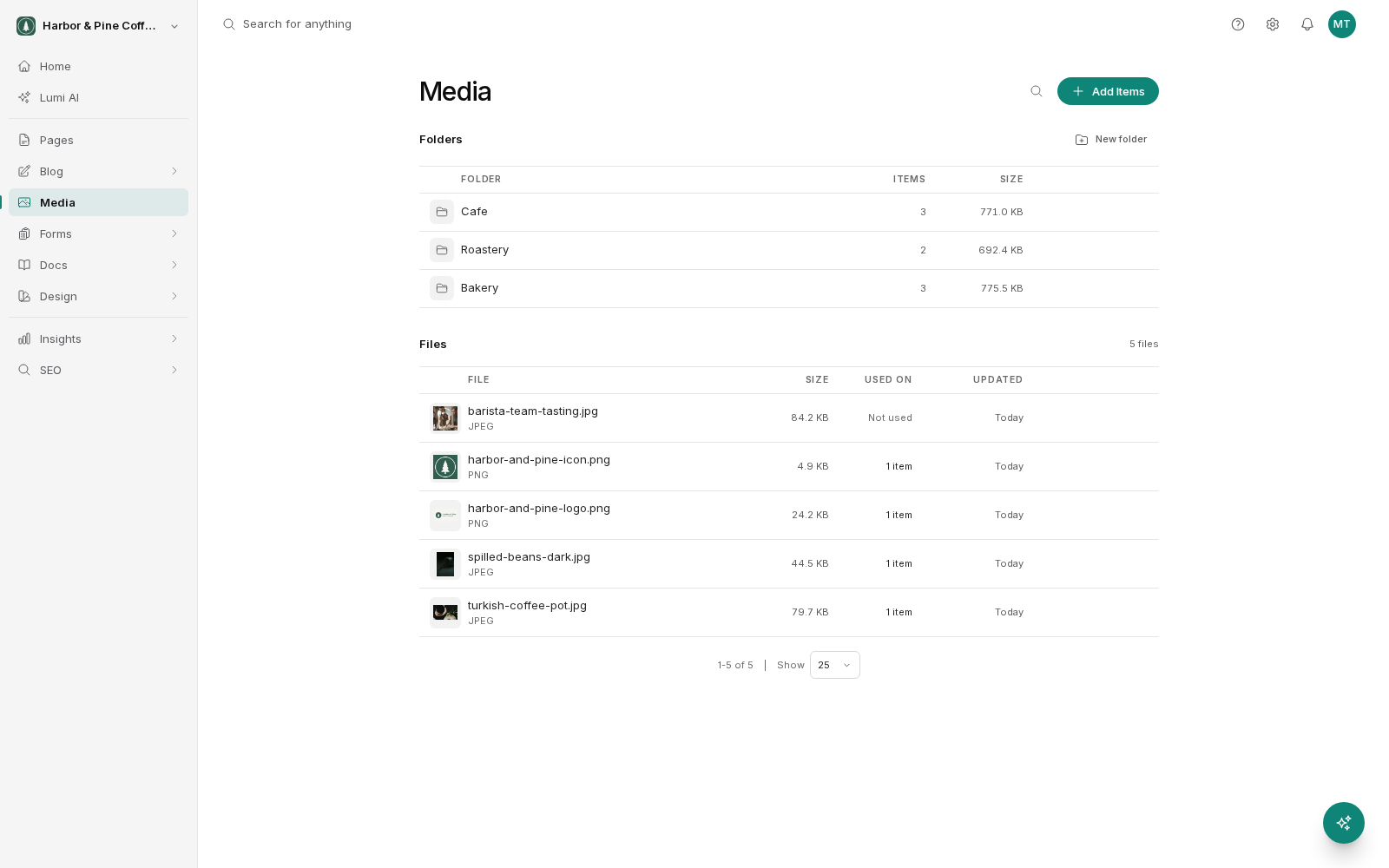
The media library holds every image and file you upload. Find it under Media in the sidebar. Anything you put on a page comes from here.
Uploading files
There are two ways to get files in. Use the upload button and pick files from your computer, or drag files straight from a folder on your desktop into the library window and drop them.
You can upload several files at once. Larger files take longer, so give a batch of photos a moment to finish before you navigate away.
You can also upload while you are editing a page. If you are placing an image and it is not in the library yet, upload it from the picker and it is added to the library at the same time.
Organizing with folders
Create folders and move files into them. On a small site you may never need more than one or two. On a larger site, folders are the difference between finding a photo in five seconds and scrolling for five minutes.
Useful ways to split things up:
- By area of the site: home, services, about, blog.
- By kind of thing: team photos, product shots, logos, documents.
- By date for things that come in batches, such as a shoot or an event.
Pick one approach and stay with it. Mixing two schemes is worse than either on its own.
Finding a file
The library offers two views. Grid shows thumbnails, which is best when you are looking for an image and will recognize it on sight. List shows more detail per row, which is best when you care about names, sizes, or dates.
Alongside that you have search, filters, and sorting. Search matches on the file name, which is a good reason to give files sensible names rather than leaving them as the camera named them. Filters narrow down to a type of file. Sorting reorders by things like name or when the file was added, so you can bring the newest uploads to the top.
Renaming, moving and deleting
Rename a file to something you will recognize later. "team-photo-sarah.jpg" beats "IMG_4471.jpg" when you are searching in six months. Renaming a file does not break pages that already use it.
Move a file into a different folder at any time. Like renaming, this does not affect pages using the file.
Deleting is different. If you delete a file that a page is using, that page loses the image. Check before you delete.
Media Usage
Media Usage shows you where a file is used across your site. Before you delete anything, look at this. If it lists pages, deleting the file will leave holes in them.
It is also useful the other way around. If you want to replace a photo everywhere it appears, Media Usage tells you every place you need to visit.
A file with no usage listed is safe to delete, though it is worth pausing on logos and anything you might want again later. Storage is rarely the constraint that makes deleting worthwhile.
Before you upload
A little care at upload time saves work later. Give the file a descriptive name, and check the size. See Image best practices for what size to aim for.