Docs lets you publish a help center on your own site. You write pages in BrightSite, organize them into sections, and visitors read them at a URL on your domain. The page you are reading right now is a docs page.
What you get
A docs site is a set of pages with reader-facing navigation built around them. Visitors get a sidebar listing your pages, an on-this-page list of headings for the article they are reading, breadcrumbs showing where they are, previous and next links at the bottom, and search across your content. You choose which of these appear.
The pages are part of your site. They use your fonts, your colors, and your domain. There is no separate login, no separate bill, and no second place to keep your content up to date.
What to use it for
Docs suits any content that is read for reference rather than browsed for interest:
- A help center for your customers.
- Product or service documentation.
- Onboarding guides for new clients.
- Policy and process pages your team refers back to.
- An internal knowledge base, if you keep the docs site private.
For dated posts that are read once (news, updates, opinion) use the blog instead. Docs pages are undated and structured; blog posts are dated and listed newest first.
Turning docs on
Docs is off until you enable it. Click the cog icon in the top right, choose Docs under Content, and turn it on. You then choose the URL your docs live under and whether they are visible to the public. Both can be changed later.
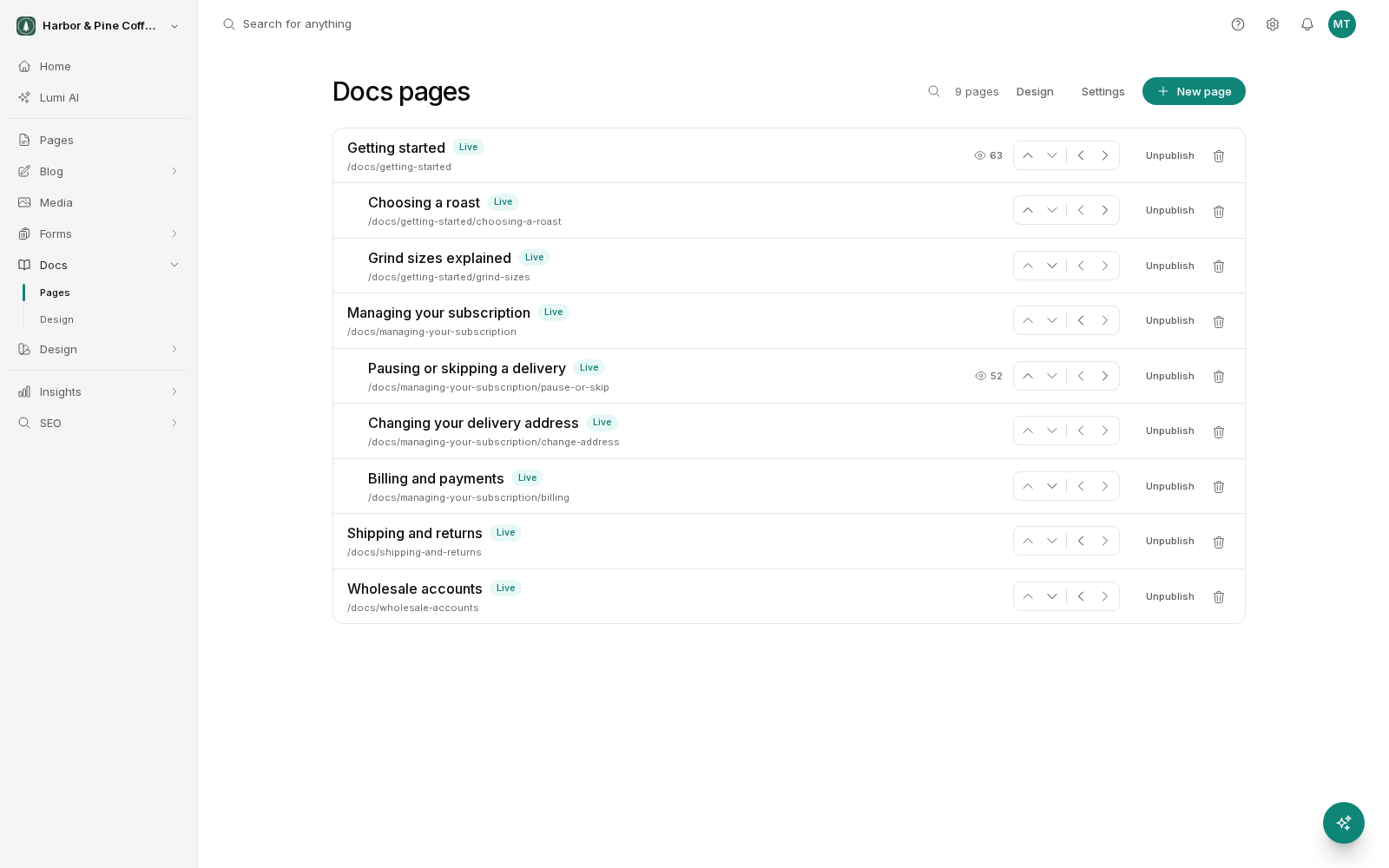
Once docs are on, you can start writing pages straight away from Docs → Pages in the sidebar. Nothing is visible to the public until you publish a page, so you can build the whole structure first and release it when it is ready.
How the pieces fit together
Three areas make up the feature, and each has its own page in this section:
- Writing pages: the editor, the title and summary, the body, and how a page appears in the sidebar.
- Organizing pages: nesting pages under a parent, reordering them, and moving them without breaking links.
- Design and settings: which navigation features are on, where the docs live, and how the pages look.
Permissions
Editing docs follows the same permissions as the rest of your content. Anyone who can edit pages can write and edit doc pages. Publishing a doc page needs publish permission. If a teammate can write but not release a page, that is a role setting, not a docs setting. See the Team and Permissions section.