Two-factor authentication (2FA) adds a second step to signing in: after your password, BrightSite asks for a 6-digit code from an app on your phone. This page covers turning it on, saving your backup codes, signing in with 2FA, and turning it off again.
2FA is set per person, not per site. Turning it on protects your own login only. It does not change how your teammates sign in.
Turning on two-factor authentication
Click your avatar in the top right and choose Settings, then Security under Personal. If 2FA is off, the Two-factor authentication section shows Authenticator app with an Enable button.
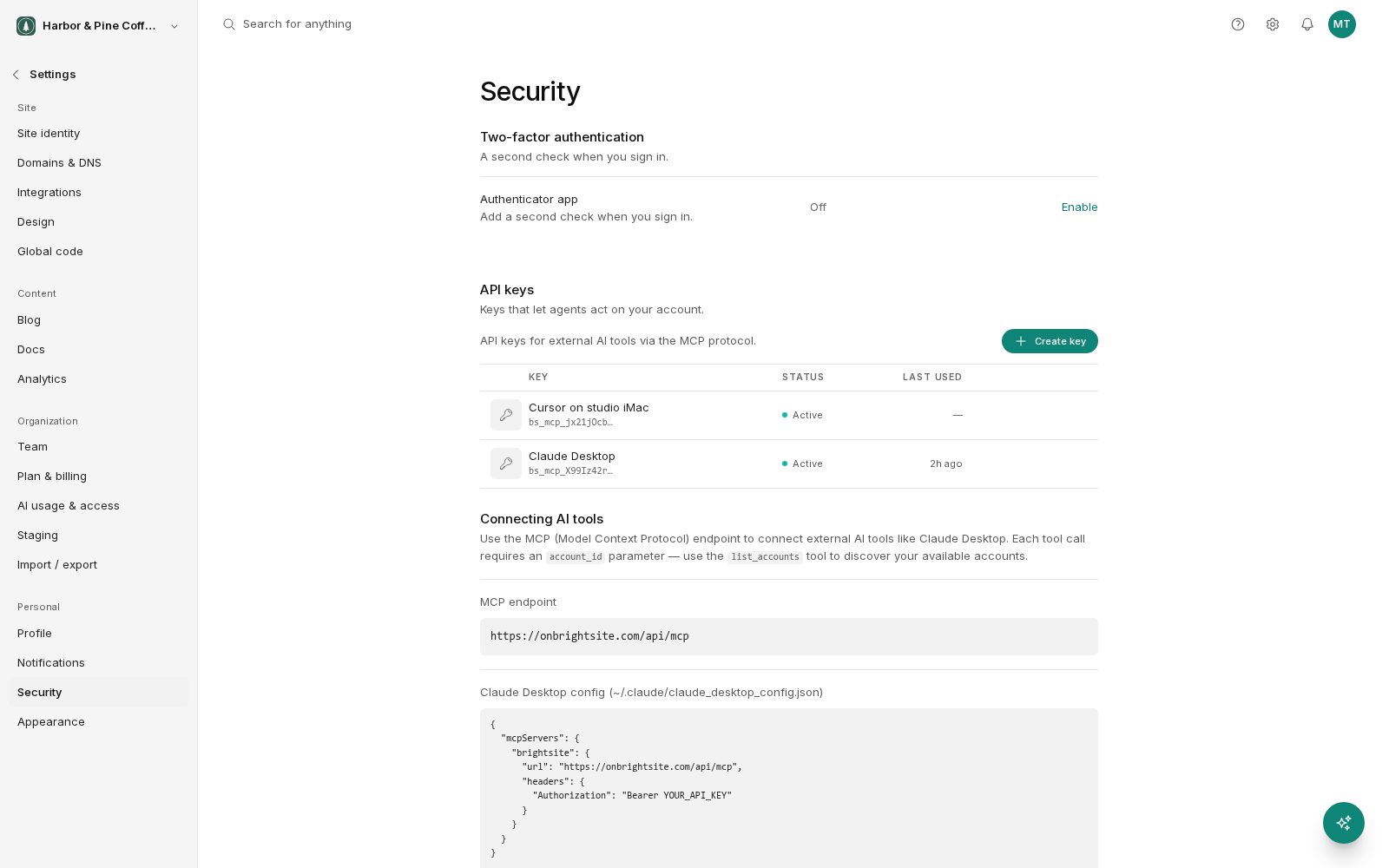
- Click Enable. A window opens showing a QR code.
- Open an authenticator app on your phone, such as Google Authenticator, Authy, 1Password and similar apps, and scan the QR code.
- If you cannot scan the code, the same window shows the setup key as text underneath. Type that into your authenticator app instead.
- Your app now shows a 6-digit code that changes every 30 seconds. Type the current code into the box and click Verify and Enable.
If the code is rejected, the window says so and clears the box. The most common cause is a code that expired while you were typing. Wait for the next one and try again.
Saving your backup codes
The moment 2FA is enabled, BrightSite shows you a set of ten backup codes. Each one works once, in place of a code from your authenticator app.
These are the only way back into your account if you lose your phone, so save them before you close the window:
- Click Download Codes to save them as a text file, or
- Copy them into a password manager, or write them down and keep them somewhere safe.
Backup codes start with a letter, which is how you can tell them apart from the 6-digit codes your authenticator app produces.
They are shown once. If you close the window without saving them, the only way to get a fresh set is to turn 2FA off and on again, which requires a working authenticator app or an unused backup code, so do not rely on that.
Signing in with 2FA turned on
After you enter your email and password, BrightSite shows a second screen headed Two-factor authentication. Enter the current 6-digit code from your authenticator app and click Verify.
If the code is wrong, the box clears and you can try again. There is no limit on attempts shown on screen, but each code is only valid for a short window, so always read the code fresh rather than reusing an old one.
If you lose your phone
On the sign-in code screen there is a link reading Lost your authenticator device?. Expand it and it tells you what to do: type one of your backup codes into the same box and click Verify.
A backup code is used up once it works. BrightSite tells you how many you have left after each one you spend.
Once you are back in, set 2FA up again on your new phone straight away, turning it off and on again from the Security page in User Settings. That issues a new set of ten backup codes and a new QR code to scan.
If you have lost your phone and your backup codes, you cannot get in on your own. Contact support so a human can help.
Turning off two-factor authentication
Open the Security page in User Settings (avatar, then Settings, then Security). With 2FA on, Authenticator app shows as enabled with a Disable button.
- Click Disable.
- Enter a current code from your authenticator app to confirm it is really you. An unused backup code works here too.
- Click Disable 2FA.
Turning 2FA off deletes your backup codes along with it. If you turn it back on later you get a fresh QR code and a fresh set of codes, and the old ones will not work.