Sometimes a visitor asks for a page that cannot be shown. They followed an old link, mistyped an address, or clicked something that was never updated. An error page is what they see instead.
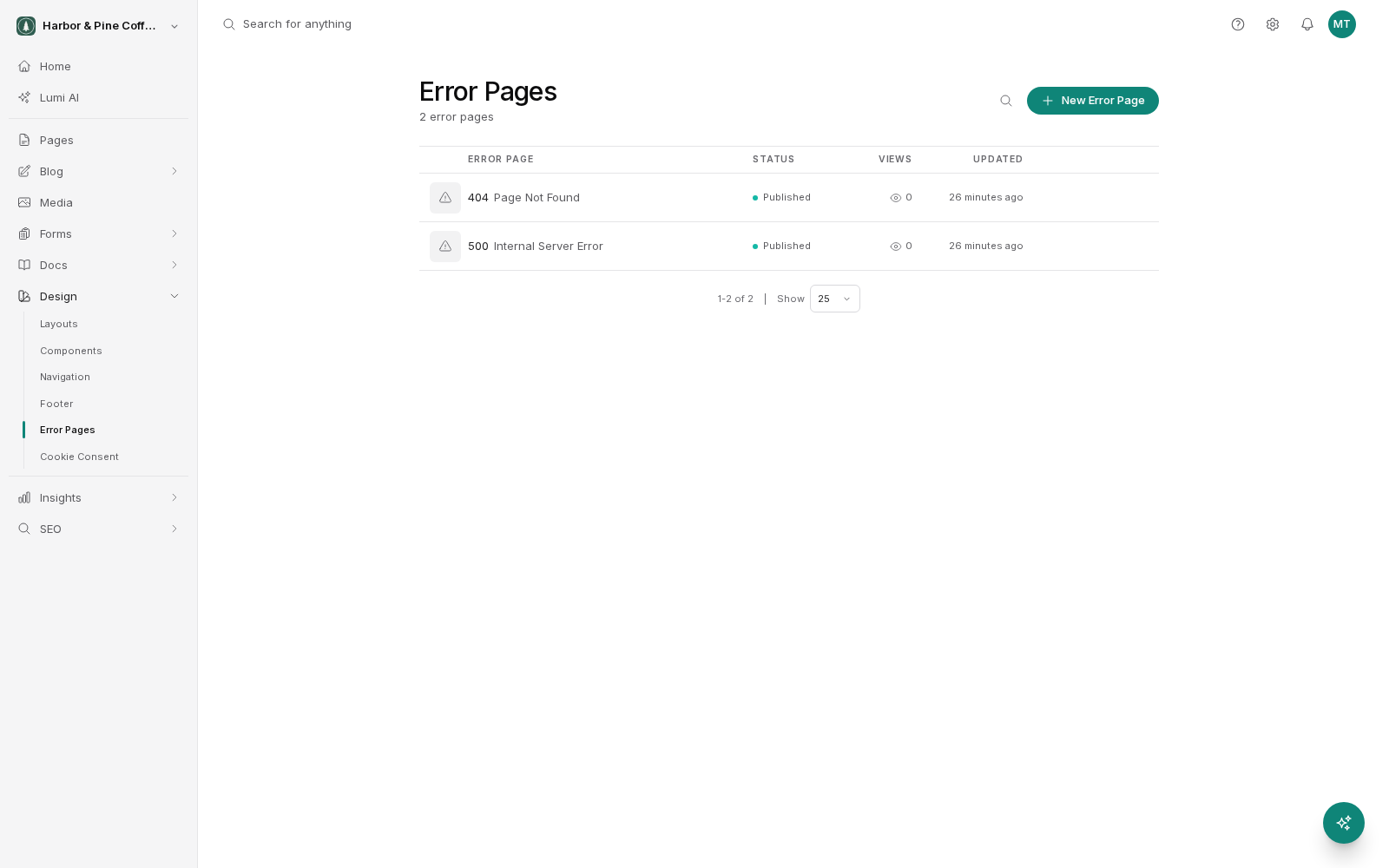
Error pages live under Design in the sidebar.
Understand status codes in plain terms
When a browser asks for a page, the server answers with a short numeric code saying how it went. You will mostly meet three:
- 404, Not found. The page does not exist at that address. This is the common one, and the one worth designing for.
- 403, Not allowed. The page exists but the visitor is not permitted to see it.
- 500, Something went wrong on our end. A general server-side failure, not the visitor's fault.
Visitors do not care about the number. They care about being told plainly that the thing they wanted is not here, and being given somewhere useful to go.
Write a 404 page worth having
The default is fine but generic. A custom 404 keeps someone on your site who would otherwise close the tab.
What works:
- Say what happened in ordinary words. "We could not find that page" is enough. Skip the jargon.
- Do not imply the visitor did something wrong. Often the broken link is yours.
- Give three or four links to the pages people most want, such as home, services and contact.
- Include a way to get in touch, especially if you rely on phone inquiries.
- Keep your normal header and footer so the page still looks like your site and the navigation is right there.
A little personality is fine. Keep it brief, and do not let a joke get in the way of the links.
Create and publish an error page
Create one from Design > Error Pages in the sidebar, choosing which error it handles. You build it in the visual editor exactly like a normal page, with text, images, links and components.
Error pages follow the same draft rules as everything else. Your work is saved as a draft, and the live site keeps showing whatever is currently published until you publish the error page. Until you publish it, visitors continue to see the default.
Test it
Once published, type an address on your site that definitely does not exist, something like your domain followed by /this-page-is-not-real. You should get your custom page.
Check the links on it actually work, and check it on a phone. An error page is easy to build and then never look at again, so a quick check now is worth it.
Fix the cause where you can
A good error page is a safety net, not a solution. If people are landing on it regularly, something is broken and worth finding.
The most common cause is a page whose slug or parent changed without a redirect being added. If you rename or move a published page, add a redirect from the old address to the new one and the old link keeps working rather than falling through to the 404 page.
Your analytics can show which addresses are producing errors. That list is usually short and usually fixable, and each entry is someone who wanted something from you and did not get it.